Connect Square
Use your own Square account to save and charge cards on new invoices.
Before you start
- Square is available with Signd Pro. Only the business owner can connect their Square account.
- Open Settings, Integrations, then Square on the Signd website. If your installed app still shows Coming soon, use the website for now.
- Have your Square sign-in ready. You need a Square location that takes cards in your business's currency.
- Connecting Square is separate from choosing it for new invoices. Finish the steps below so new bookings use the account you want.
Open Square in Settings
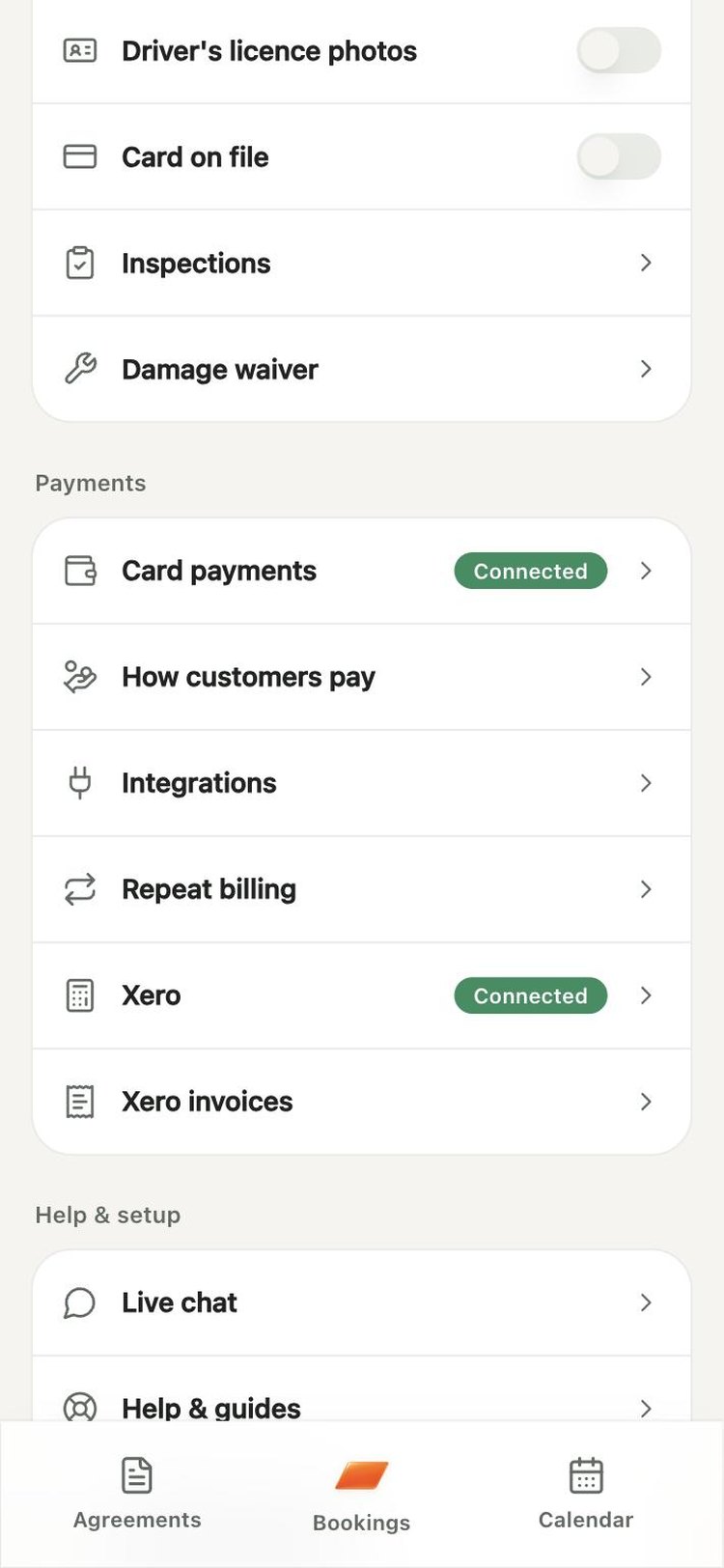
- Go to Settings. Under Payments, tap Integrations.
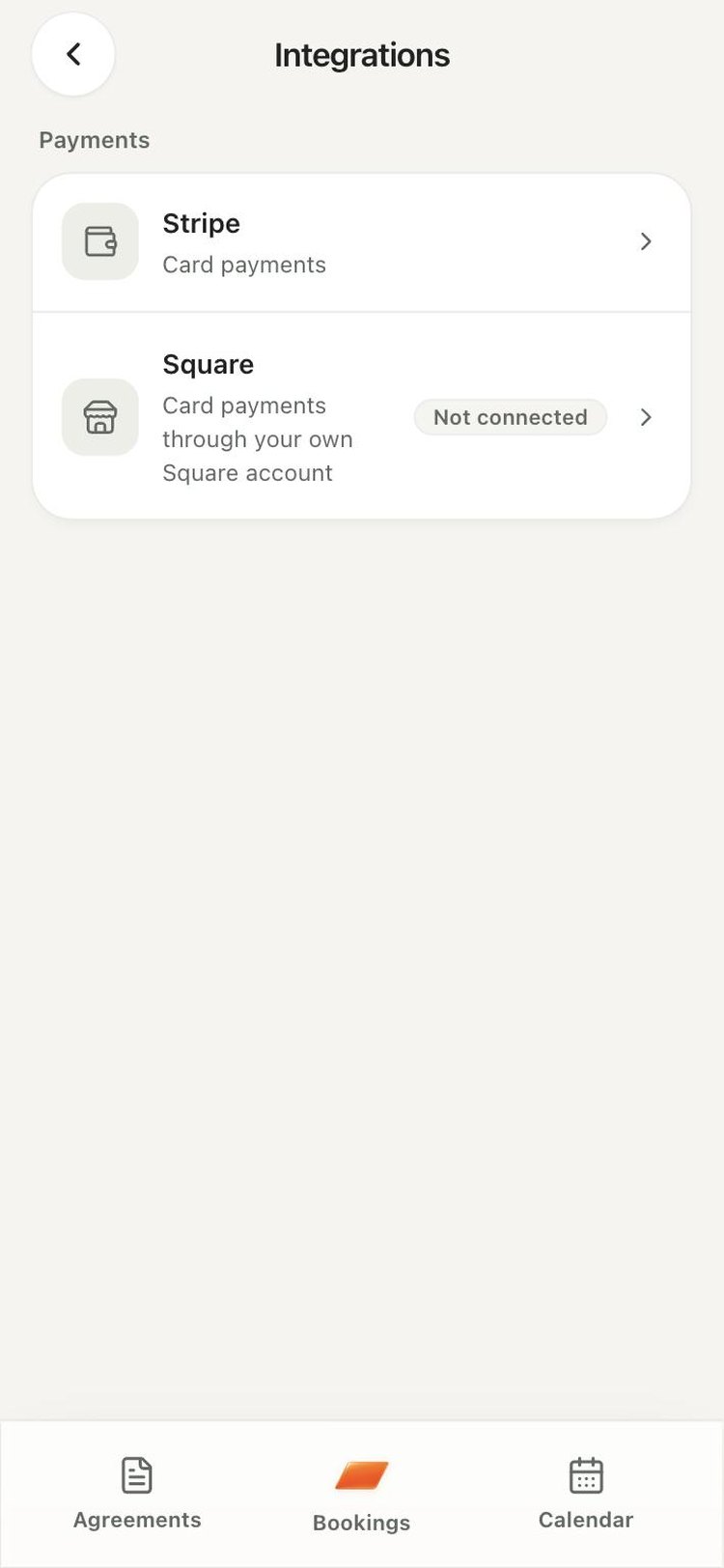
Choose Square
- Tap Square. It shows Not connected until you connect it.
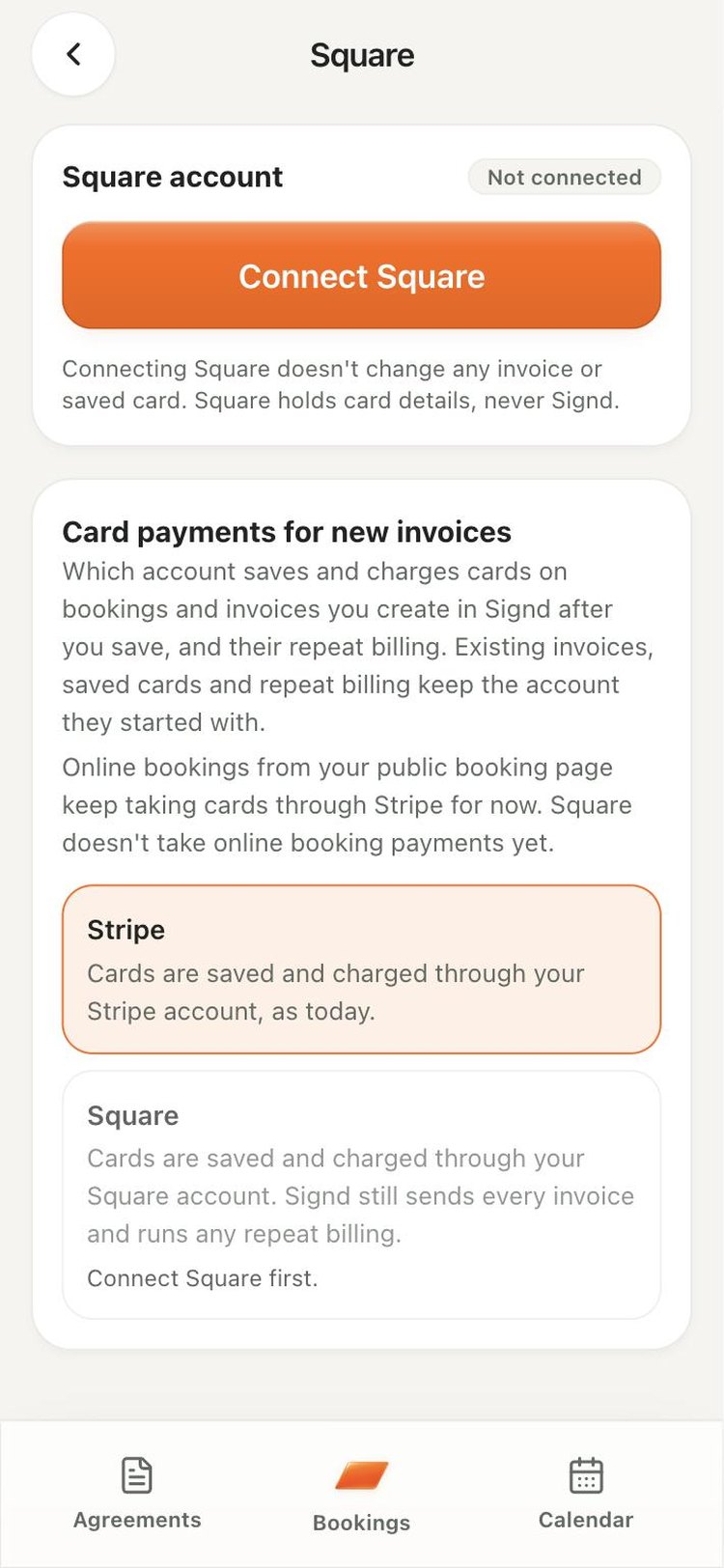
Connect Square
- Tap Connect Square.
- Connecting doesn't change any invoice or saved card. Square holds card details, never Signd.
- Square stays grayed out under Card payments for new invoices until it's connected.
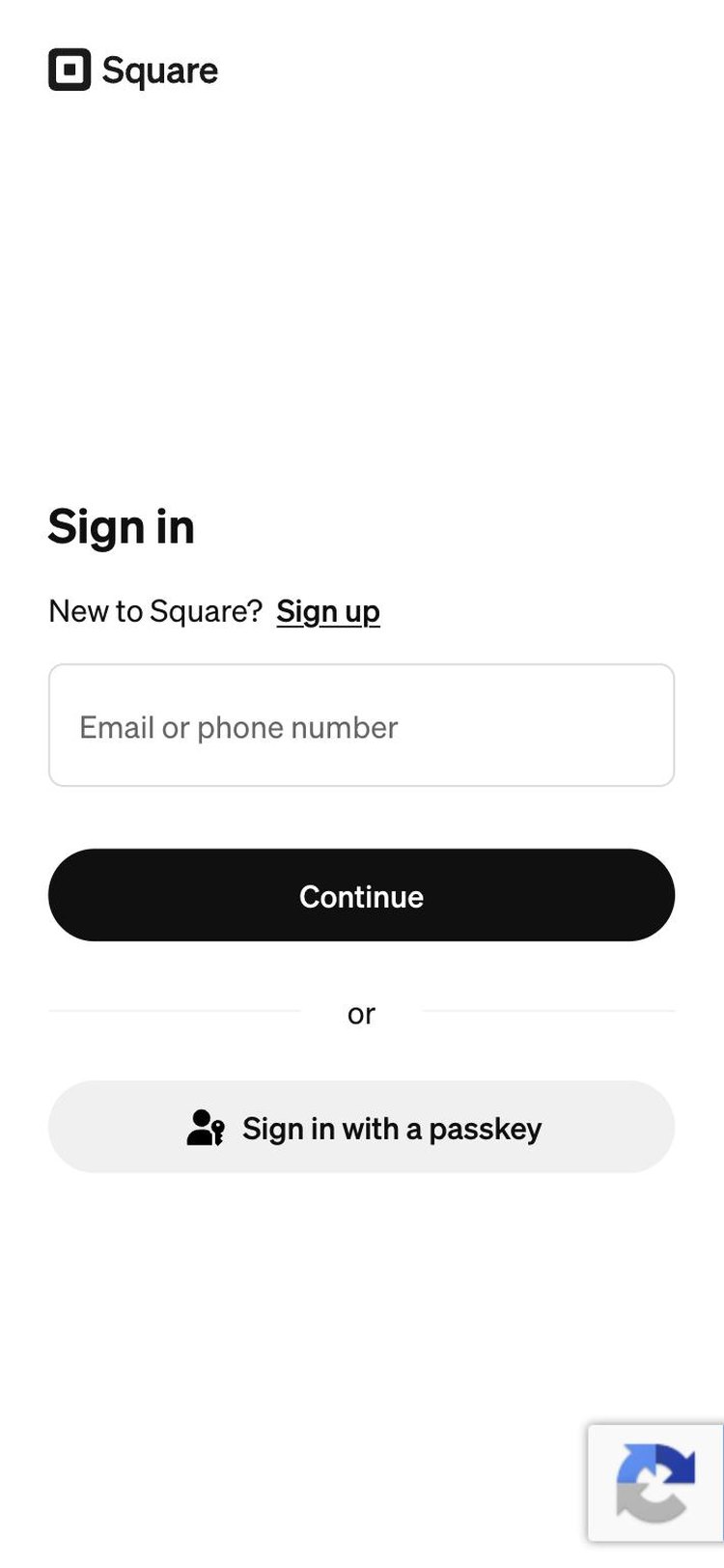
Sign in to Square and allow access
- Square opens. Sign in with your Square email or phone number.
- Allow every permission Square asks for. Signd needs all of them to save and charge cards.
- You come back to Signd and see Square connected. Choose a location next.
No Square account yet? Tap Sign up on Square's page, then come back and connect it.
Choose a location
- Tap Choose location. Your active Square locations are listed.
- Tap the one that takes the payments. Signd shows Location saved, and the location under Square account.
- A location in another currency can't be picked. One marked Square can't take cards here yet needs finishing in Square first.
- To use a different one later, tap Change location.
Use Square for new invoices
- Under Card payments for new invoices, tap Square.
- Check the message and tap Save. Signd shows Saved for new invoices.
- Bookings and invoices you create from now on save and charge cards through Square, including their repeat billing.
- Existing invoices, saved cards and repeat billing keep the account they started with. Signd still sends every invoice.
- Online bookings from your public booking page keep taking cards through Stripe. Square doesn't take online booking payments yet.
Using Xero? If Sync recorded payments automatically is on in Settings, Xero, Xero would record Square payments as manual bank payments. Turn that off, or keep Stripe for new invoices.
On a booking
- Square payments show under Card payments: Square on the booking.
- Tap Charge saved card to charge a card the customer saved with Square.
- Tap Refund on a Square payment to refund it.
Check, reconnect or disconnect
- Check again asks Square for the latest status of your account.
- If access was removed or the sign-in expired, tap Reconnect Square and allow every permission.
- Disconnect stops Signd using the account. Invoices already on Square can't take new Square payments or refunds until you reconnect the same account. Signd never moves them to Stripe.
- Disconnecting while new invoices use Square? Choose Stripe under Card payments for new invoices too.
Something not right?
Who can connect Square?
Only the business owner. Team members see a note that the owner can change it.
Can I use Square and Stripe together?
Yes. You choose which one saves and charges cards on new invoices. Older invoices keep the account they started with, and online bookings from your booking page use Stripe.
Does Signd see card numbers?
No. Square holds the card details.
Why does Square say Coming soon?
An older installed app may still show this message. Square is available to Signd Pro businesses on the website: open Settings, Integrations, then Square.