Take card payments with Stripe
Connect Stripe to take card payments and keep cards on file.
Connect Stripe
- Go to Settings → Card payments, or type stripe in Find a setting.
- Pick your country if asked.
- Tap Connect Stripe. Stripe opens to set up or link your account.
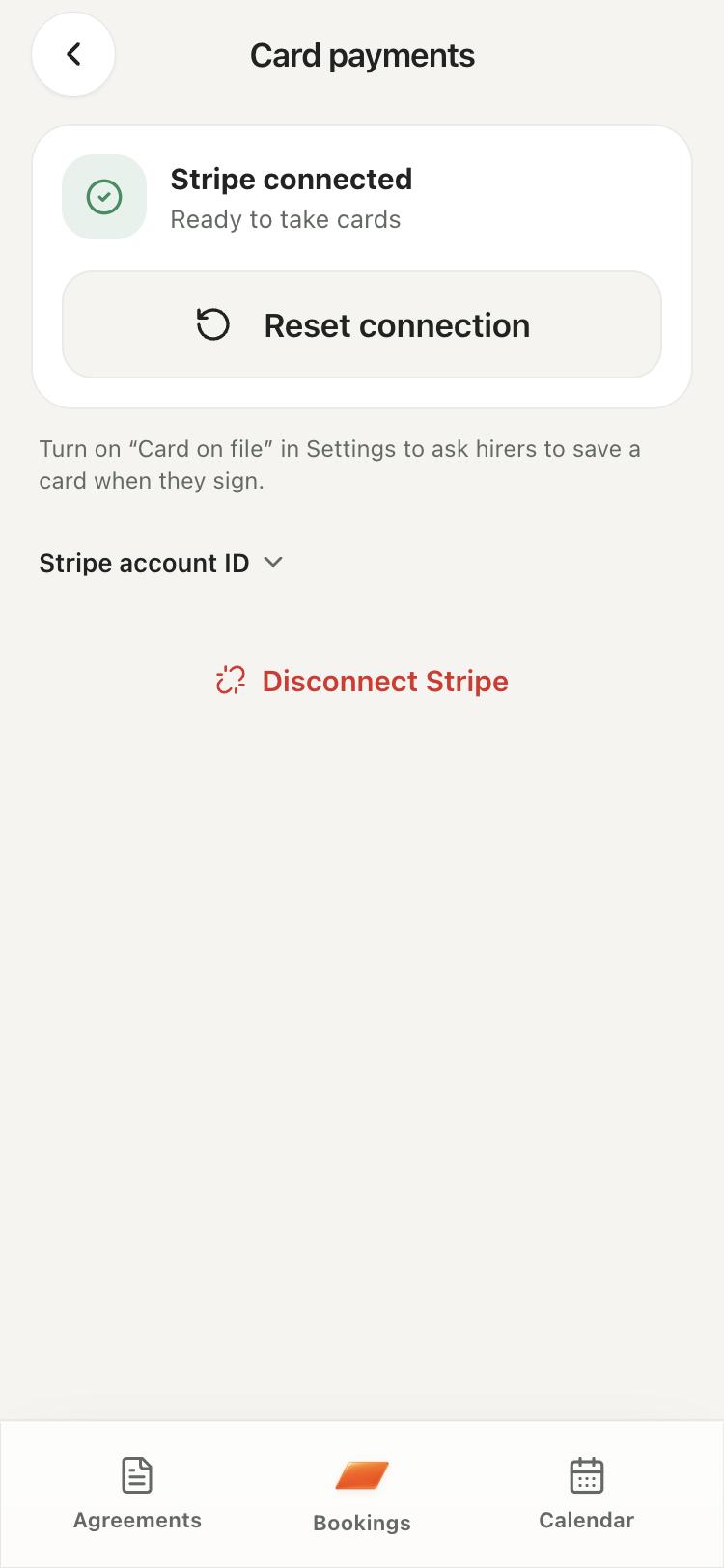
- Finish Stripe's steps. Back in Signd it shows Stripe connected and Ready to take cards.
Stripe pays the money into your bank account on your payout schedule. Stripe transaction fees apply to card payments, including a security deposit collected by card. The original processing fees aren't returned when you refund the payment. A security hold reserves funds until you capture it, release it or it expires.
What you can do with it
- Customers pay invoices online by card, Apple Pay or Google Pay.
- Ask customers to save a card when they sign.
- Charge a saved card for fuel, cleaning or damage.
Card blocking rules and surcharges
- To block debit or prepaid cards, set up Stripe Radar rules on your connected Stripe account. Saving a card for later needs an extra Radar setting.
- Eligible US businesses can set up a credit-card surcharge in Signd for customer invoice payments. Customers review the fee before paying; debit and prepaid cards have no surcharge.
It says Finish setup
- Stripe needs a few more details.
- Tap Finish setup on Stripe, then Check again.
Something not right?
Who can connect Stripe?
Only the business owner.
Do I need a new Stripe account?
No. You can link one you already have.
Can Signd add a credit-card surcharge and exclude debit cards?
Eligible US businesses can set up a surcharge in Signd for customer invoice payments in USD. Stripe checks the card and debit, prepaid and unidentified cards have no surcharge. Customers accept the exact fee and total before payment. See card surcharges for setup and supported locations. To block debit and prepaid cards entirely, use Stripe Radar.