Save a card and charge it later
Keep your customer's card on file. Charge fuel, cleaning or damage in one tap.
Before you start
- Card payments are set up in Settings → Card payments. See Take card payments with Stripe.
Ask for a card when they sign
- On the Send step, turn on Card on file.
- Or turn on Card on file in Settings for every agreement.
- Your customer saves a card before signing. Saving it doesn't charge it.
Charge the card
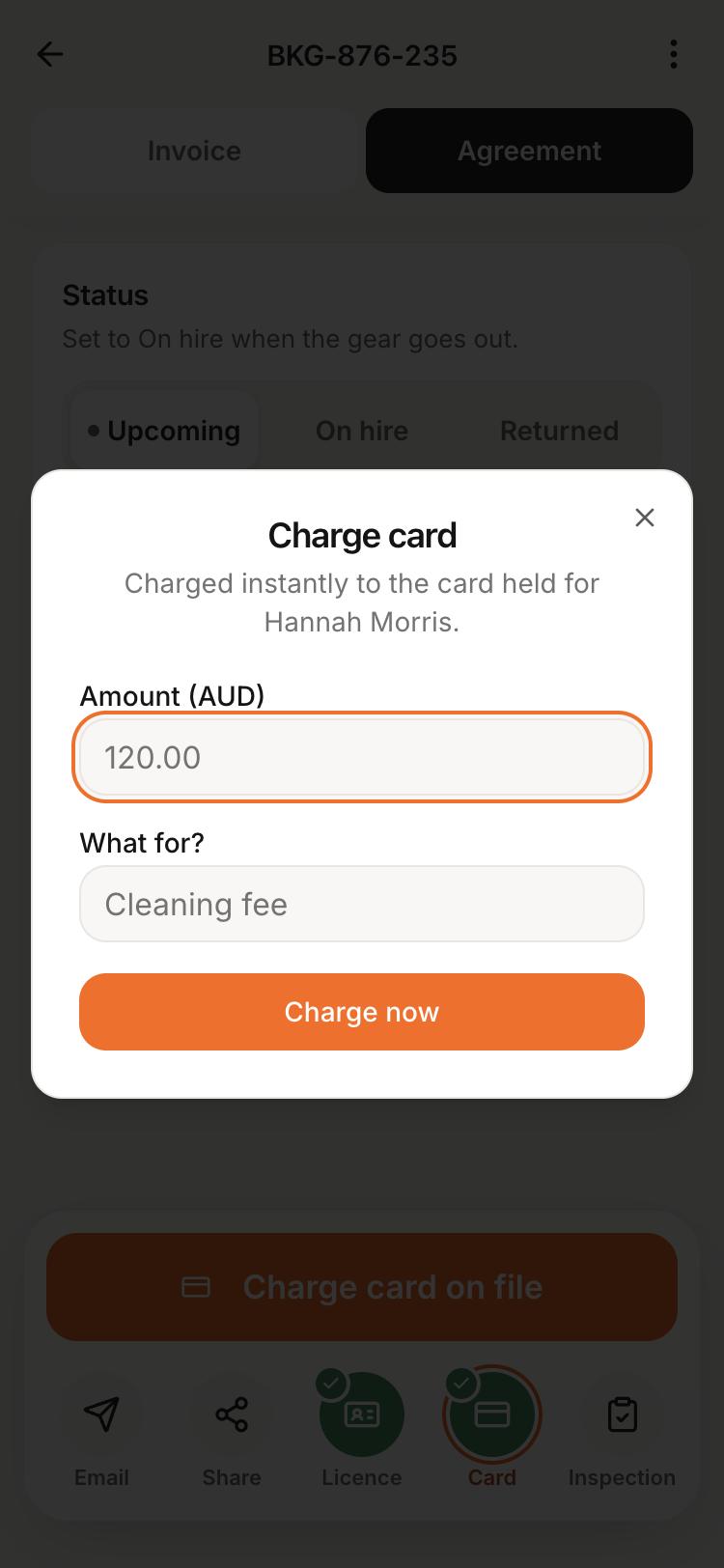
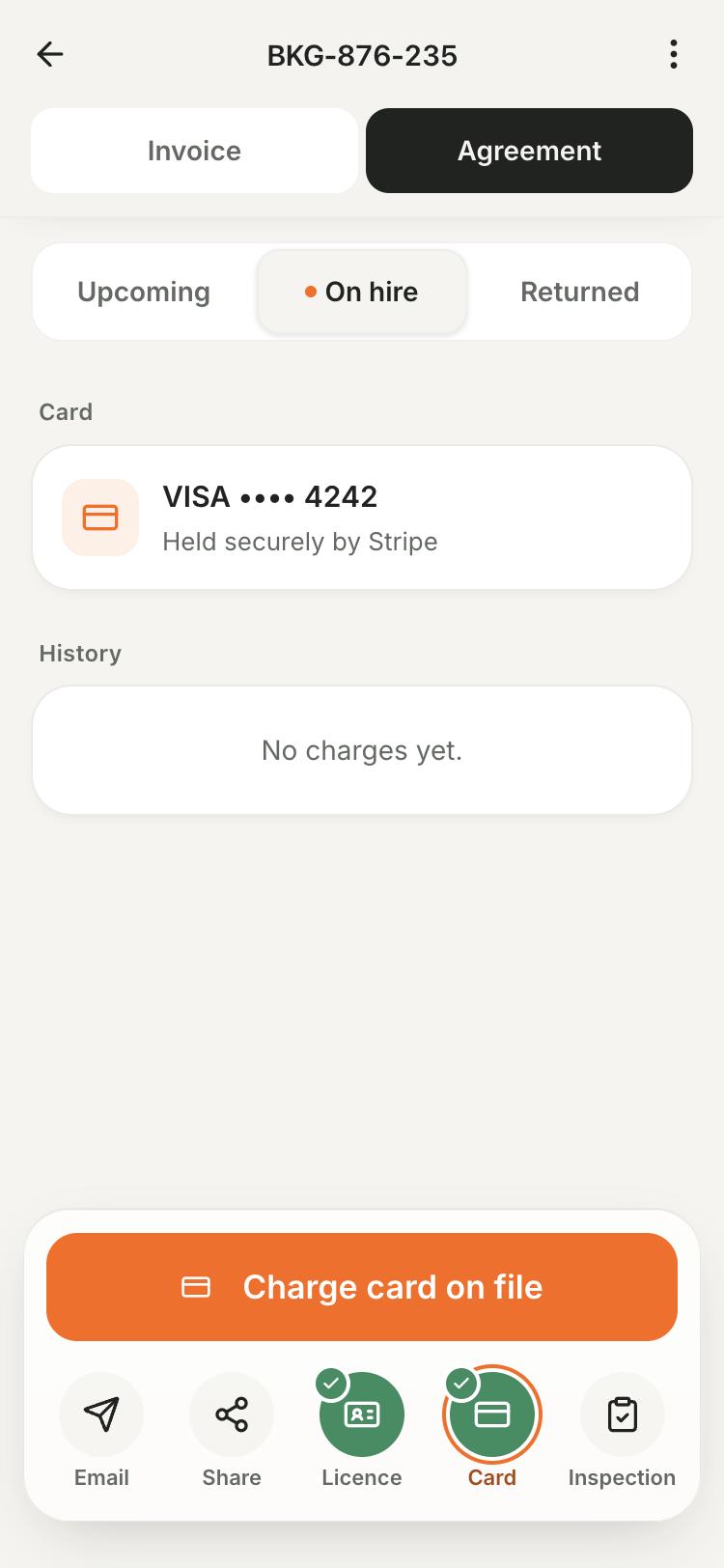
- Open the agreement and tap Card. You'll see the saved card and its charges.
- Tap Charge card on file.
- Enter the amount.
- Say what it's for, like "Cleaning fee".
- Tap Charge now.
The card is charged straight away. Your customer gets a receipt. For a booking, add any extras as lines on its invoice, then charge the balance from the Invoice. See Take a payment.
Refund a charge
- Open Card and find the charge under History.
- Tap the undo icon, check the refund amount shown and confirm.
- The money goes back to the same card.
- Need to charge again? Tap Charge card on file.
Stripe transaction fees apply when you charge a card, including a refundable security deposit. The original processing fees aren't returned when you refund it. A full security deposit refund returns the full security deposit to your customer; your business still bears those fees.
Remove a saved card
- Open the customer (Settings → Customers) and, under Card on file, tap Remove card.
- Tap Remove card to confirm, or Keep card. The card comes off the customer and can't be charged from Signd again.
- Signed agreements and past charges stay on file. To charge them later, ask for a new card.
Something not right?
Can I charge more than once?
Yes. Charge as many times as you need, each with its own reason.
What's the smallest charge?
50 cents.
Charging extra on a booking?
Add the extra as a line on the invoice, email it, then charge. See Take a payment.