Manage a booking
Status, invoice, agreement and extras — all on one screen.
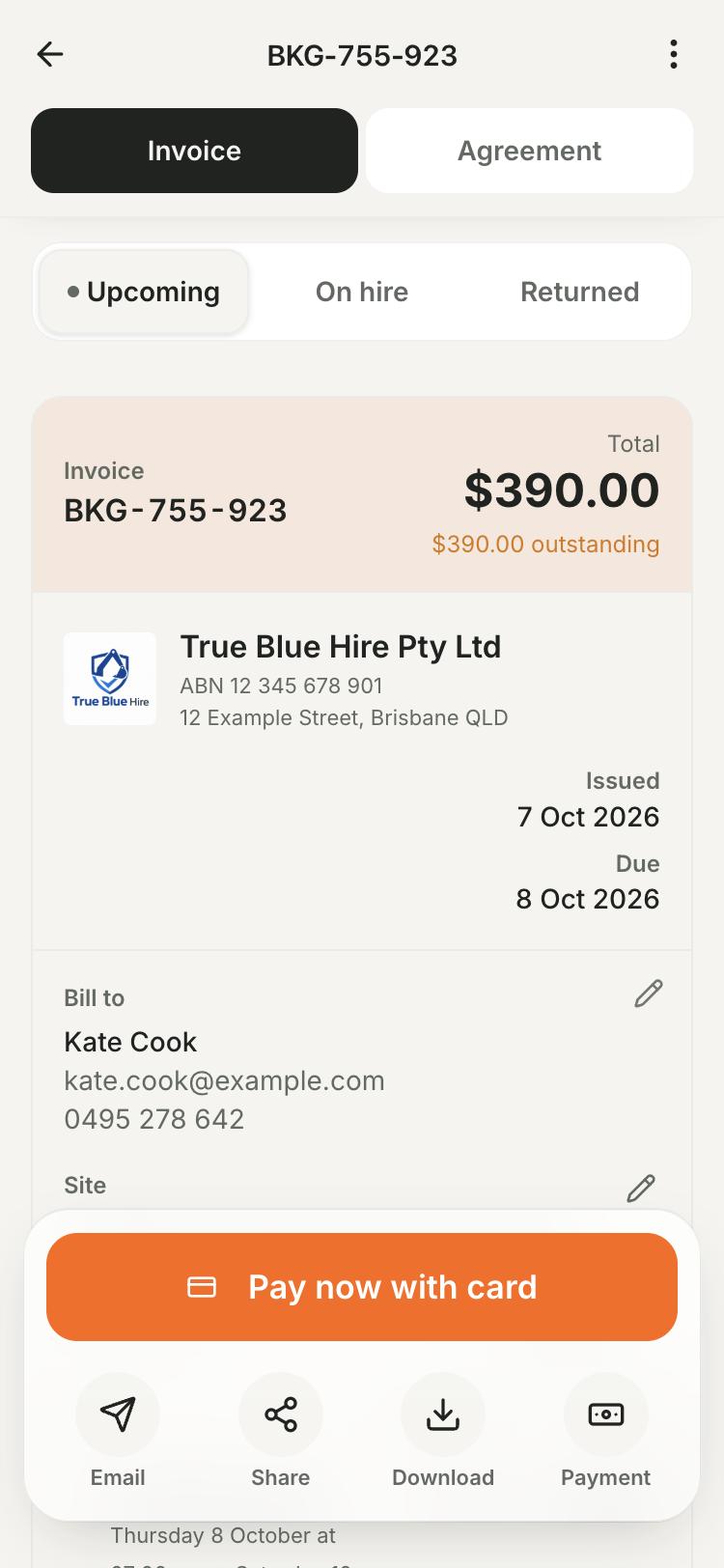
Open a booking
- Tap Bookings, then tap a booking.
- Pay now with card, Email, Share, Download and Payment sit at the bottom.
- The booking number is at the top.
- Switch between the Invoice and the Agreement.
Set the status
- Tap On rental when the gear goes out.
- Tap Returned when it comes back.
- The booking moves to that tab in your list.

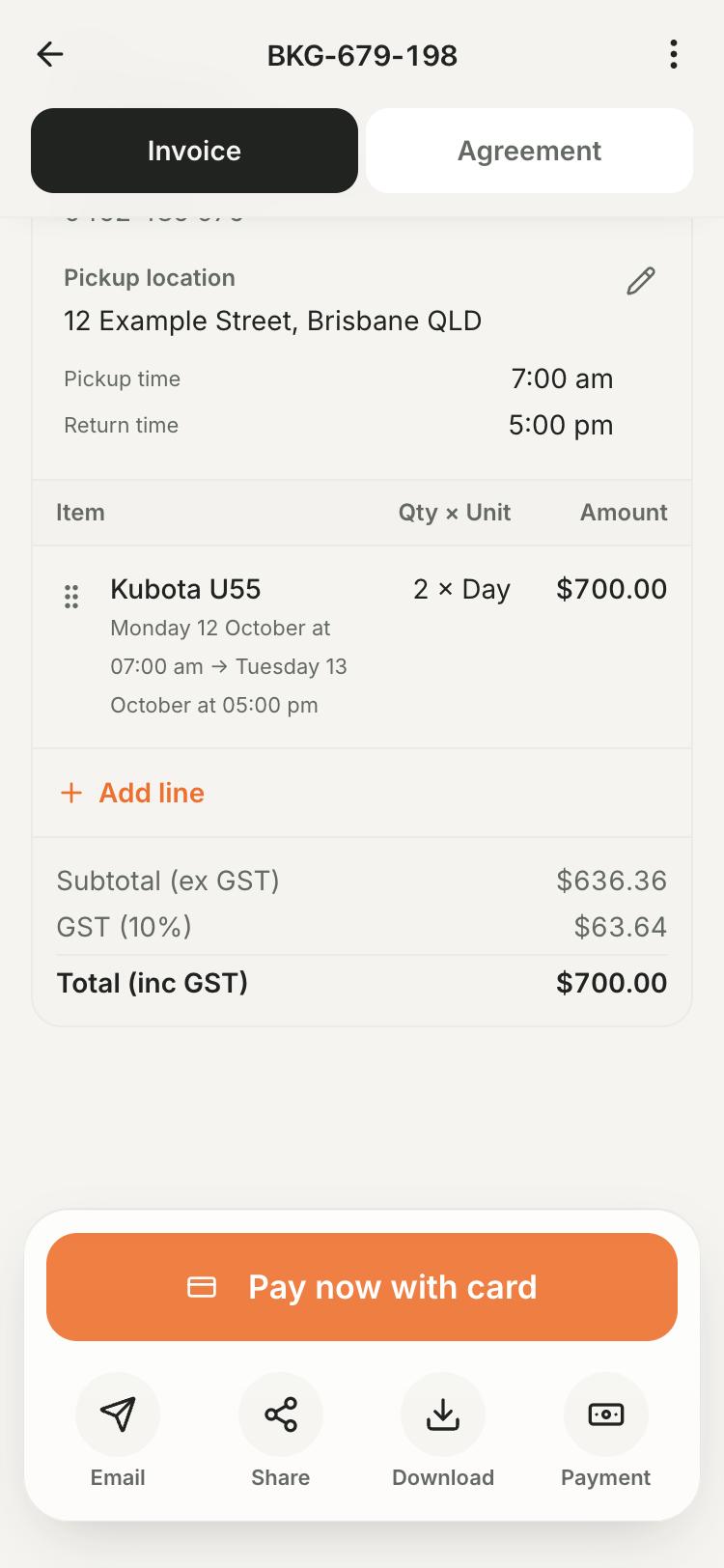
Change the invoice
- Tap a line to change its dates, qty or price.
- Tap + Add line for more gear, delivery, a fee or a custom line.
- Tap the pencil to fix the customer's details or the site and times.
- Drag a line by its handle to reorder it.
Changed the invoice after sending it? Tap Email to send the new one. Signd doesn't resend on its own.
Send, share or download
- Email sends the invoice. Tick the box to include the agreement.
- Share copies your customer's booking link.
- Download saves a PDF. Or tap ⋮ then Download PDF.
The agreement tab
- See the rental agreement, signed or waiting.
- Tap Sign now to sign in person.
- Use Licence, Card and Inspection for those jobs.
Something not right?
Can I change a booking after the agreement is signed?
Yes. Invoice lines can still change. The signed agreement stays exactly as signed.
How do I extend a rental?
Tap the gear's line on the invoice and change its end date. Delivery lines move with it.
How do I add more gear?
Tap + Add line, then Another asset, and pick its dates.
It says the invoice can't be less than what's been paid
Record a refund first, then lower the invoice.