Send a hire agreement
Create a digital hire agreement and send it to sign. Six quick steps.
Before you start
- Your hire terms are set up. Go to Settings → Terms.
- Optional: turn on Driver's licence photos or Card on file in Settings (Pro).
Open a new agreement
- Tap Agreements at the bottom.
- Tap New agreement at the top.
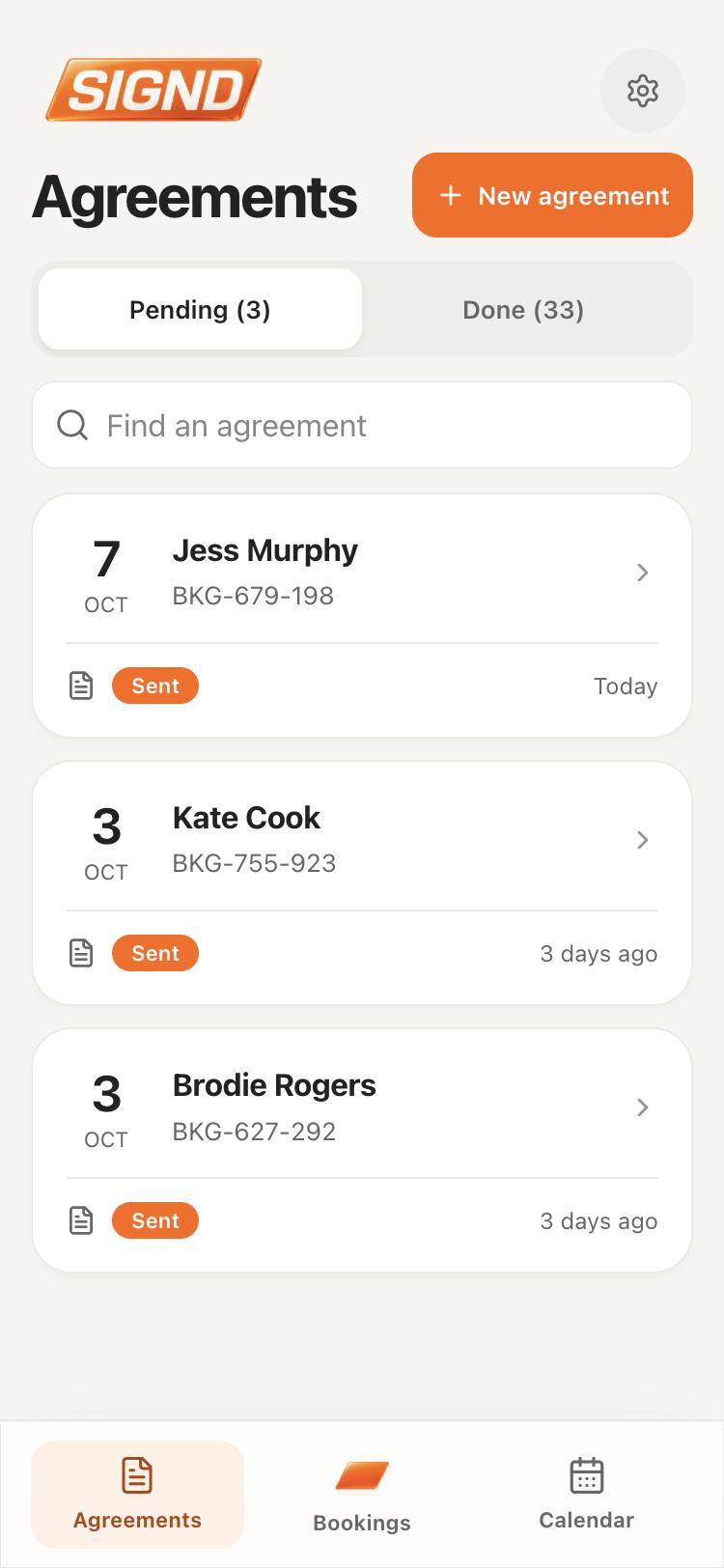
Step 1: Choose the customer
- Tap the customer. You'll go straight to the next step.
- Search by name to find them fast.
- New customer? Tap + Add new customer. Just a name and email.
First time? Tap Send a test agreement to yourself to see what customers see.
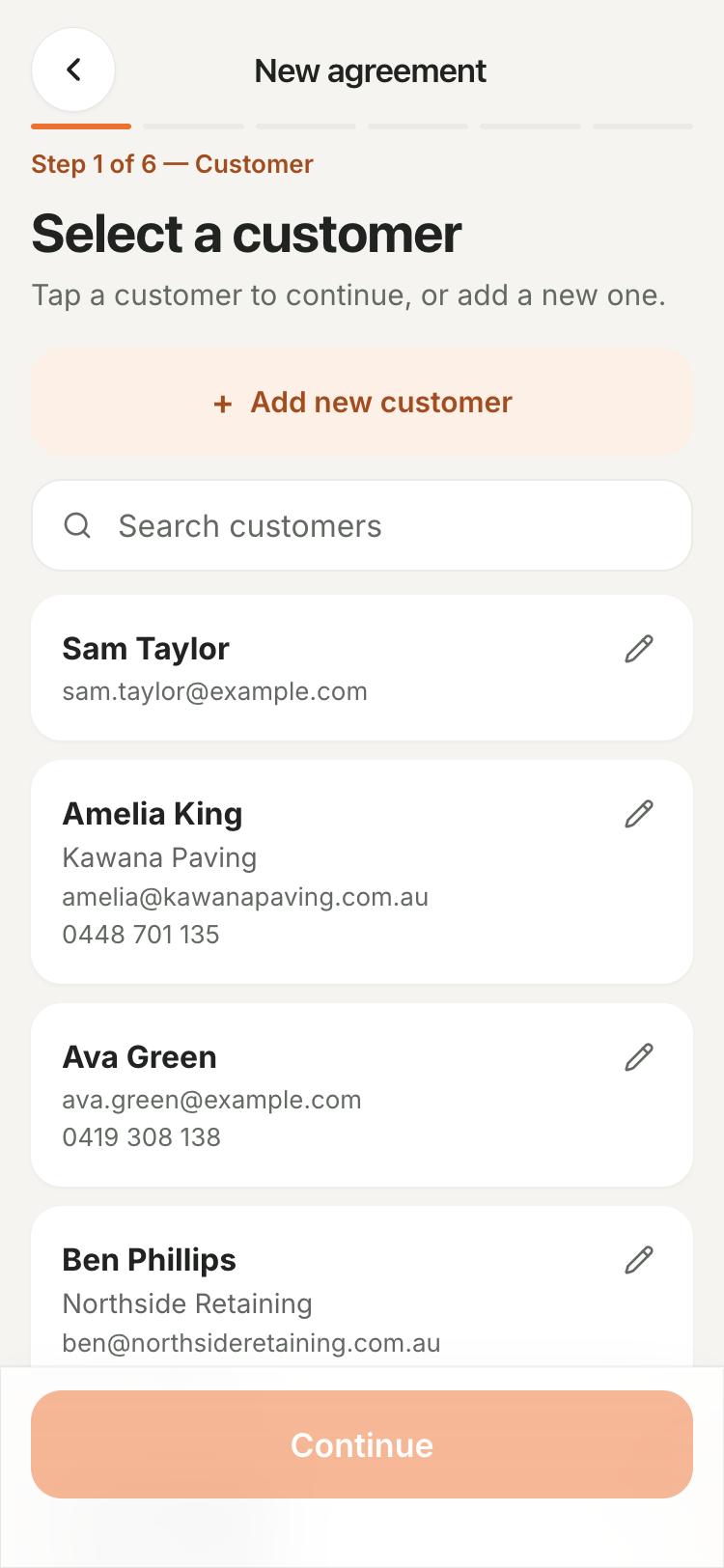
Step 2: Pick the gear
- Tap each asset going out. A tick means it's added.
- Not in the list? Tap + Add asset.
- Tap Continue. Pick at least one asset first.
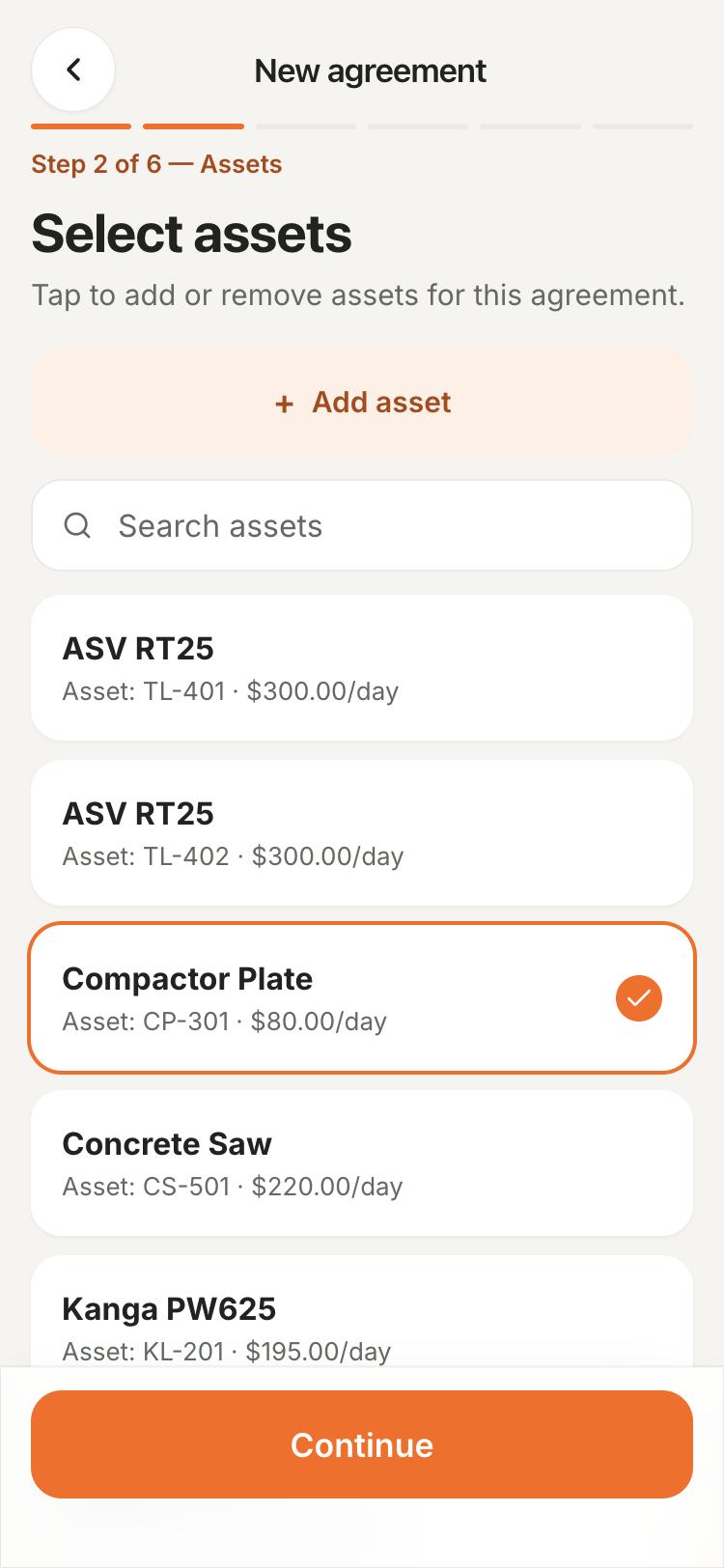
Step 3: Add the hire details
Every field is optional. Fill in what helps.
- Set the Hire start and Expected return dates.
- Add the Hire total. Picked gear with a day rate? Tap Use $… to fill it in.
- Add the delivery or job-site address.
- Add a PO or job reference if the customer needs one.
- Add Notes for your customer. They show on the agreement they sign and on their signed copy. You can add or edit them on the agreement screen until it's signed. Older notes marked Team only stay off the agreement until you tap Show to customer.
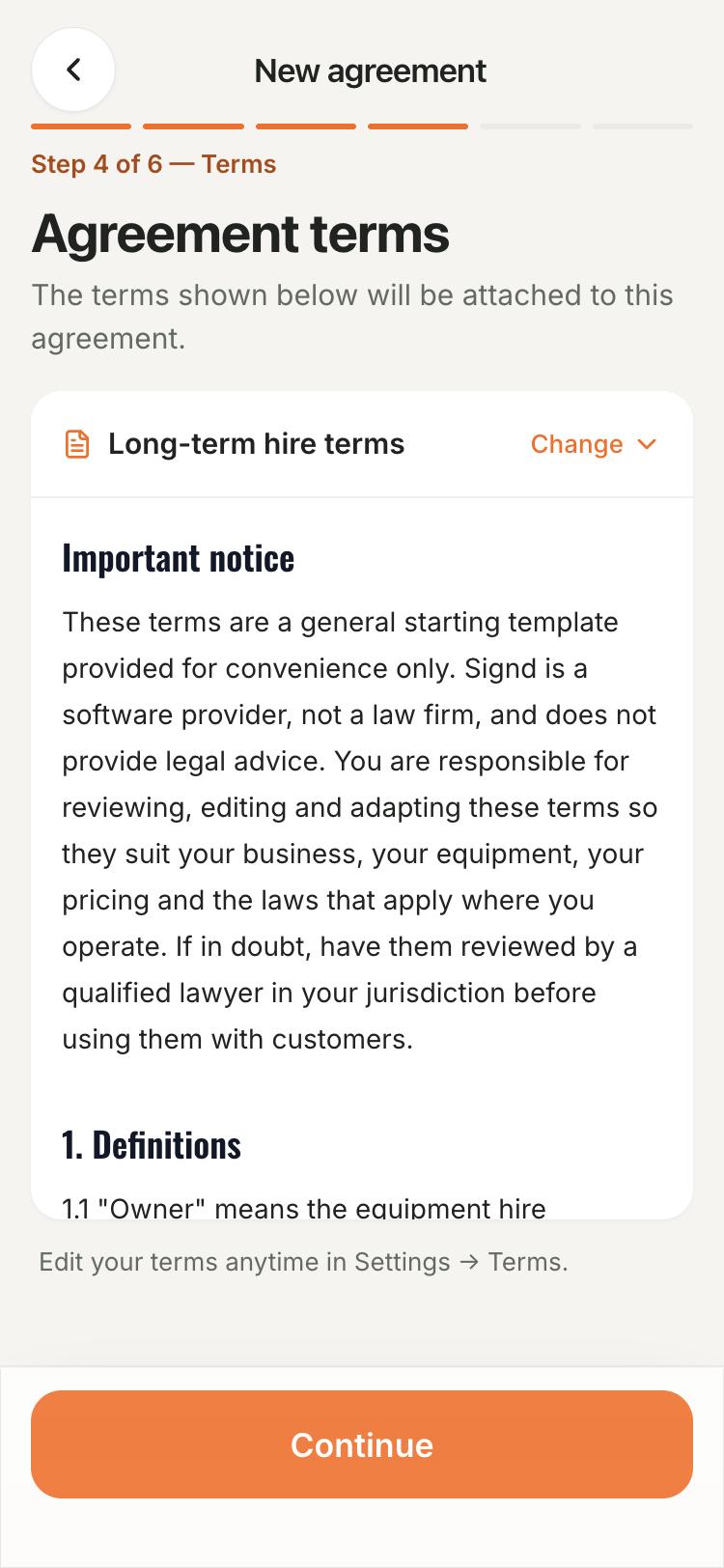
Step 4: Check the terms
- These terms are attached to the agreement.
- Have more than one set? Tap Change to pick another.
- Tap Continue.
The set you pick becomes your default for the next agreement too.
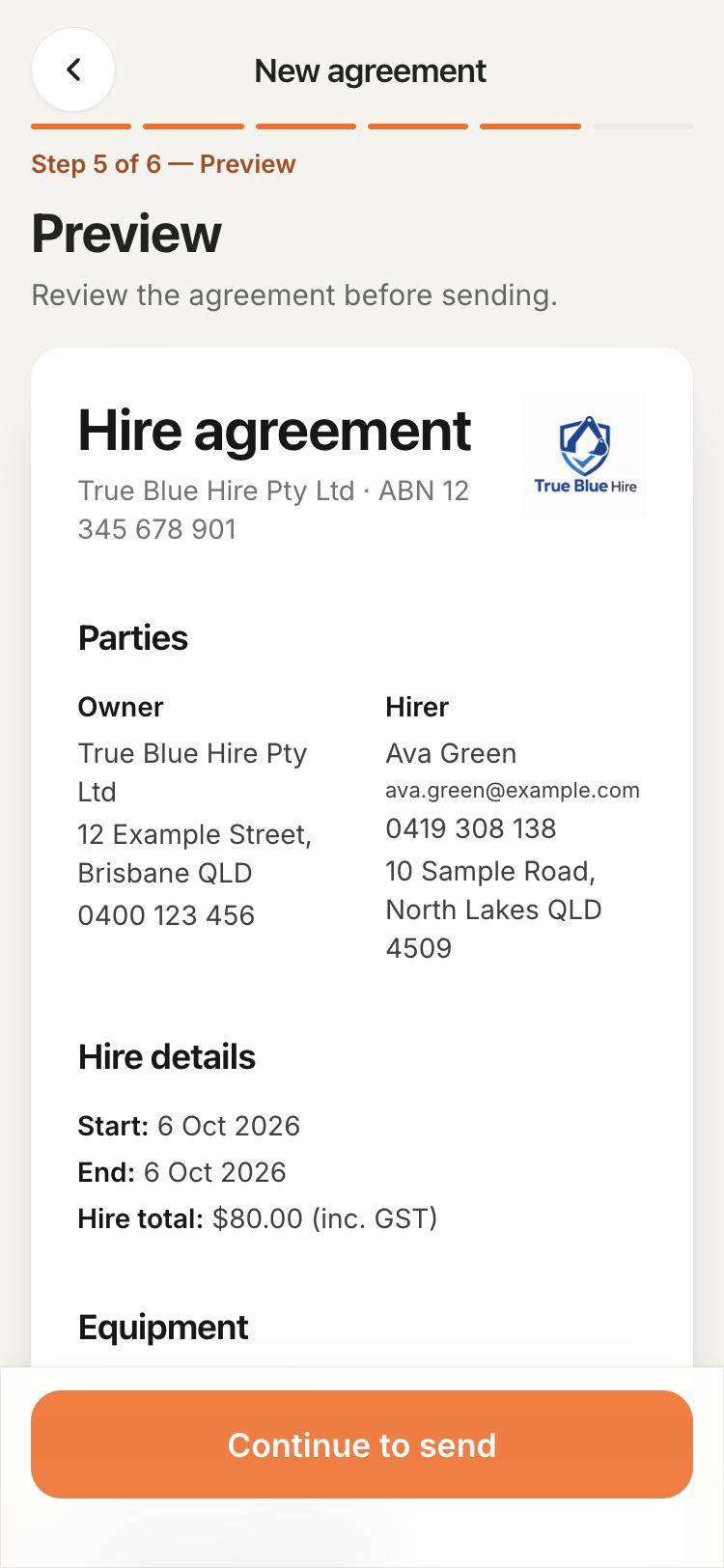
Step 5: Preview it
- This is exactly what your customer signs.
- Scroll down to check the gear and terms.
- Spot a mistake? Tap ← to go back.
- Tap Continue to send.
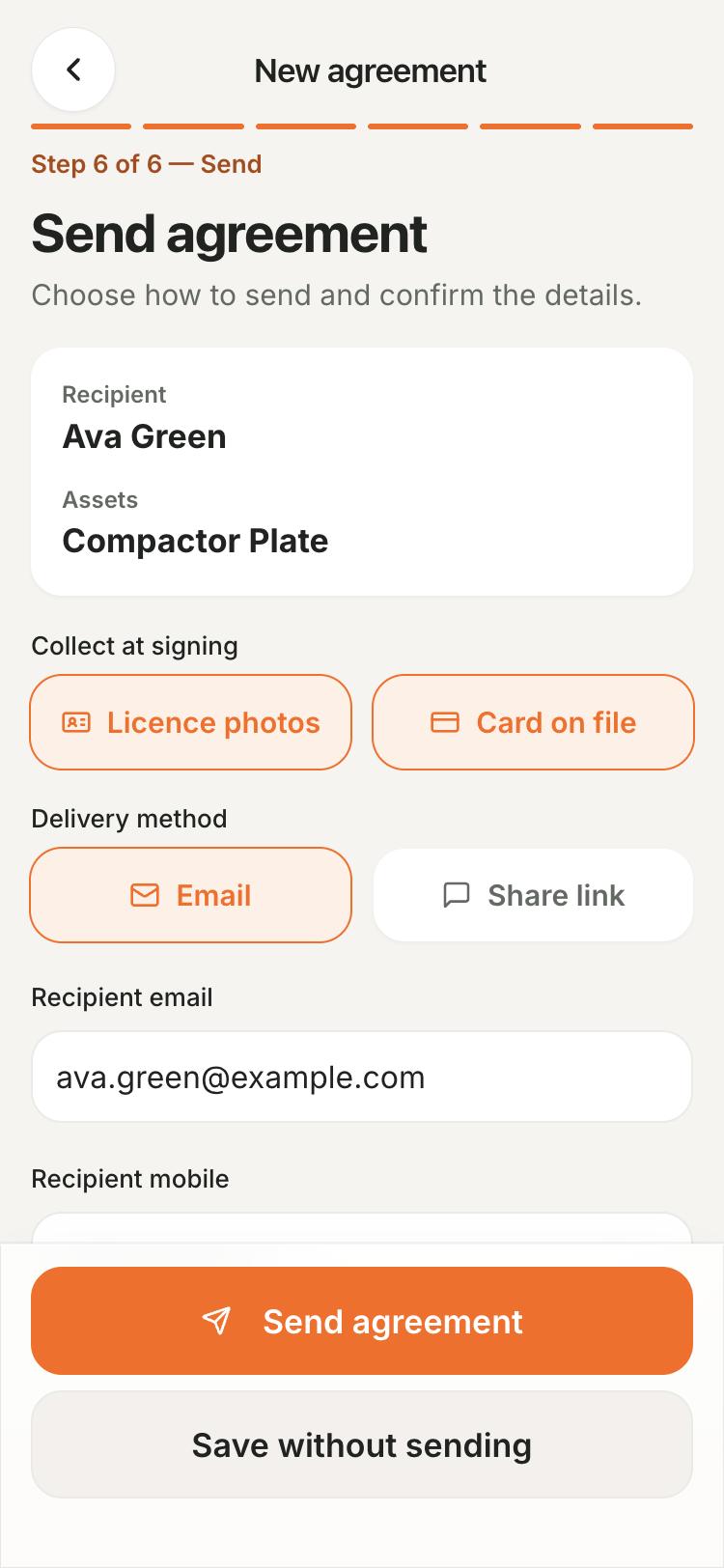
Step 6: Send it
- Choose what to collect: Licence photos and Card on file.
- Pick Email or Share link.
- Check their email and mobile.
- Tap Send agreement. On Share link, tap Copy signing link and paste it in a text.
- Not ready? Tap Save without sending. It's saved as a draft.
Licence photos and card on file are part of Signd Pro. Card on file also needs Stripe.
What happens next
- You'll see Agreement sent. Tap View agreement to keep an eye on it.
- Your customer gets an email with a Review and sign button.
- When they sign, you get an email and a notification. It moves to Done.
- They get a signed PDF copy by email.
Something not right?
Does my customer need an account?
No. They just open the link, fill in a few details and sign.
Can I text the link instead?
Yes. Choose Share link, tap Copy signing link and paste it in a text. Signd doesn't send texts itself.
Can I change an agreement after sending?
Not once it's sent. Delete it and send a new one. Signed agreements can never change.
Does the signing link expire?
No. Agreement links keep working until the customer signs.
Card on file is locked
It needs Signd Pro and card payments set up. See Take card payments with Stripe.