Use the calendar
See every booking by week or month, by customer or by asset, or as a simple run sheet.
Week, Month or Schedule
- Tap Calendar at the bottom.
- Choose Week, Month or Schedule at the top.
- Week is a timeline: a column for each day, with a slim bar for each booking stacked down the page, so lots of hires fit and names stay readable. Swipe sideways for other days; five days fit on the screen. Pinch with two fingers to zoom the days in or out.
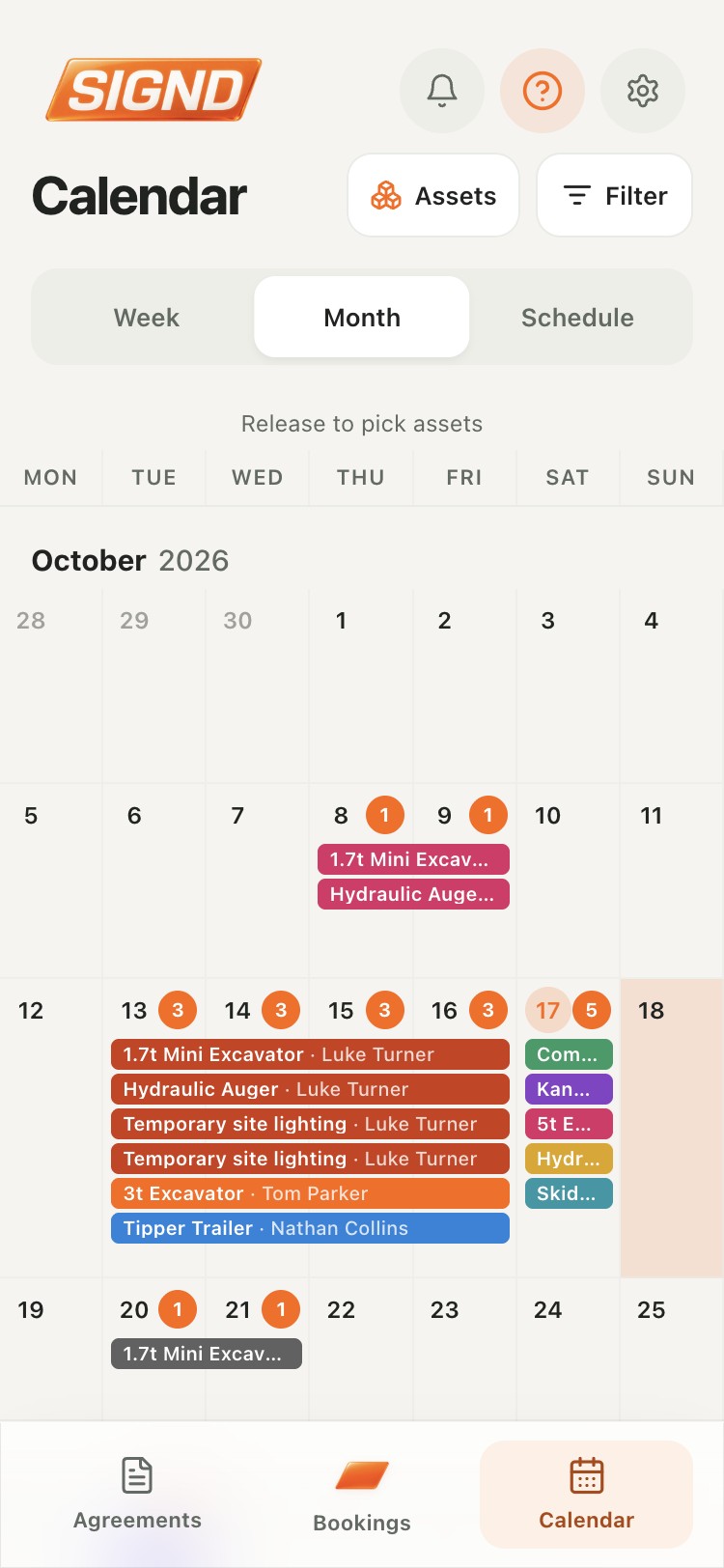
- Month is a compact month grid: each month under its own heading, a row for each week, and each booking's bar across its days. A busy day shows how many more, like +3 more: tap the day to see them all.
- Schedule lists every pickup, delivery and return, day by day.
- Tap Filter for unpaid bookings or deliveries only.
Show customers or assets
- Use the Customers / Assets control, just left of Filter. On a computer or tablet it's a two-option switch. On a phone it's one small button showing your current choice: tap it to switch.
- Customers: one bar per booking, with the customer's name.
- Assets: one bar for each machine or attachment on the booking, in the booking's colour. A booking with no assets still shows the customer.
- It works in Week and Month. Each booking stays in the same place when you switch. Schedule doesn't change.
Your choice is remembered on that phone or computer.
Move around the Week timeline
- Scroll up and down to see more bookings that day.
- To move to other days, swipe sideways, or swipe sideways on a trackpad.
- Pinch with two fingers to fit more or fewer days on screen. Your zoom stays when you open a booking and come back.
- The calendar header folds away as you scroll down the bookings, and comes back when you scroll up.
- On a computer, use Zoom in and Zoom out, or click the timeline and use the arrow keys.
Tap a day
- In Week or Month, tap a day to see that day's bookings: pickups, deliveries and returns.
- See what's Out now.
- Tap a booking to open it.
On a computer, click a booking's bar to open that booking straight away.
Make a booking from the calendar
- In Week or Month, press and hold a day without moving, then slide across the days you need. A quick swipe just scrolls.
- Let go. Pick your assets. The dates are already filled in.
On a computer, click and drag across the days.
Something not right?
How do I jump back to today?
Tap another tab at the bottom, like Bookings, then tap Calendar to switch back. It opens at today.
How do I see which machine is out?
Switch the calendar to Assets. Each machine or attachment on a booking gets its own bar, in the booking's colour.
Too many bookings to read in Month?
Try Week. Each day gets a wider column with a slim bar per booking, so more fit and names stay readable. Scroll down for the rest.