Block debit and prepaid cards with Stripe Radar
Set a card blocking rule in Stripe, including the extra setting needed when customers save a card for later.
Before you start
- Open the Stripe account connected to your business in Signd. Check its business name and account ID before changing any rules.
- You need permission to manage Radar rules. Custom rules currently require Radar Plus or Radar Pro; check Stripe's plans and pricing before accepting any upgrade or trial.
Which account's rules apply?
- Signd's standard Stripe connection uses your connected account for card payments. Rules set on that account apply to those payments. Signd doesn't create or edit your Radar rules.
- Open Settings → Card payments or Settings → Getting paid in Signd to check your connection. Use Open Stripe Radar to open that account's rules, then check whether you're in live mode or a sandbox.
- If your Stripe account only has Express access, or you can't find Radar, contact Signd support before changing another account's rules. Stripe explains which account controls Radar.
Blocking cards and adding a surcharge are separate choices. A Radar rule doesn't add a fee or enable credit-card surcharges in Signd.
Step 1: Add your blocking rule in Stripe
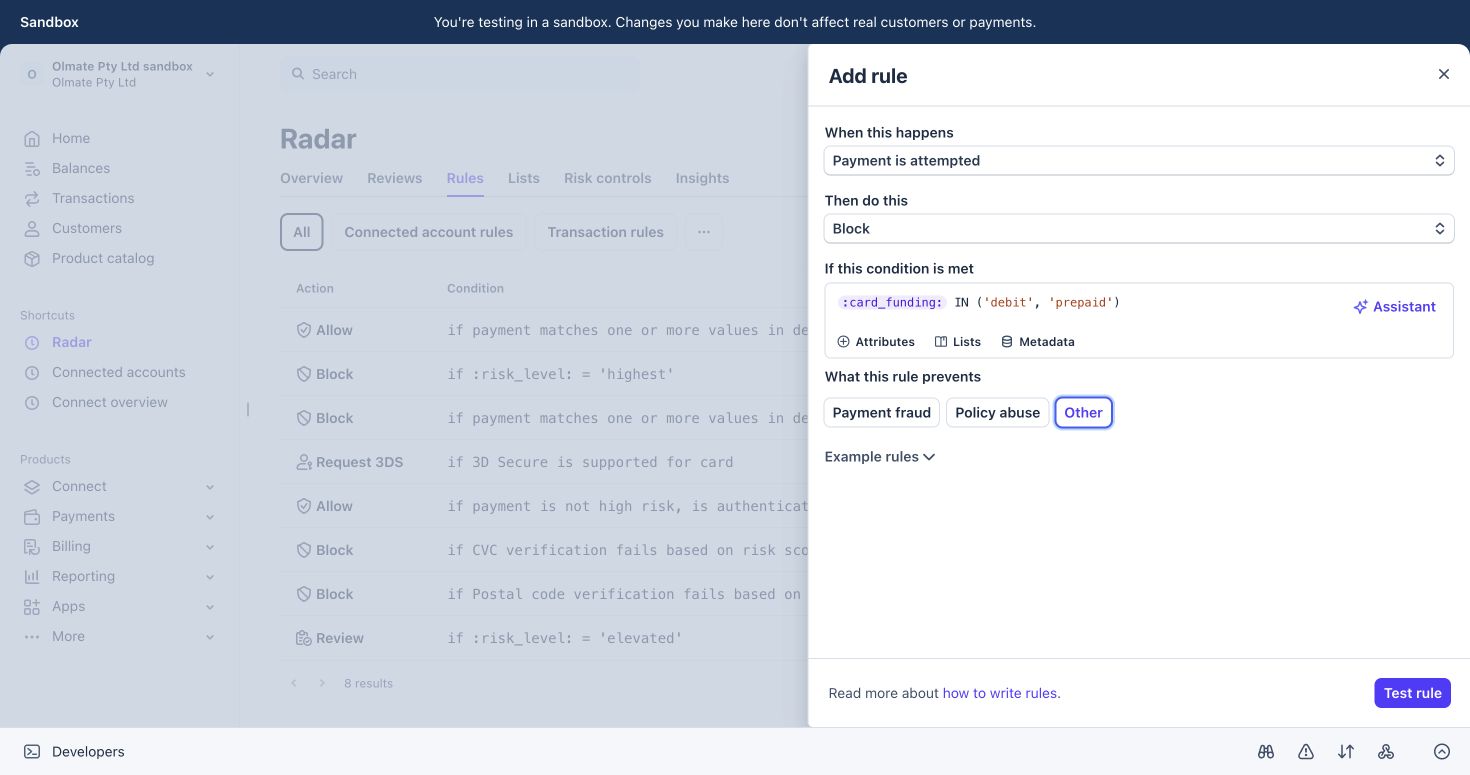
- Open Radar → Rules and choose Add rule.
- Set When this happens to Payment is attempted, and Then do this to Block.
- Paste this condition into If this condition is met: :card_funding: IN ('debit', 'prepaid')
- If asked What this rule prevents, choose Other.
- Choose Test rule to see which recent payments would have been blocked. This opens the review; it does not activate the rule.
This condition blocks cards Stripe identifies as debit or prepaid. It leaves cards with unknown or missing funding information, and non-card payment methods, unchanged. It is not a guarantee that every accepted payment uses a credit card.
Review and activate the rule
- On Review new rule, check that it says Block with :card_funding: IN ('debit', 'prepaid'). Review the test results before continuing.
- Keep Adjust traffic allocation at 100% to block every matching card. A smaller allocation only blocks some matching payments.
- Check existing Allow rules and allowlists. A matching Allow rule takes priority over a Block rule, so a debit or prepaid card could still be accepted.
- When you are ready to activate it in the selected account and mode, choose Add rule. Check that the new rule is enabled in the rules list.

Step 2: Apply the rule when customers save a card
- Open Stripe's Radar settings on the same account.
- Turn on Use Radar on payment methods saved for future use. Without it, saving a card without a payment is not scanned by Radar by default.
- Stripe calls saving a card a SetupIntent. Block rules can apply at that step; Review rules cannot. Check the fee shown before enabling it: Stripe charges for each confirmation attempt.
Saving a card does not take a payment. Enabling this setting does not remove cards already saved or change earlier payments. Stripe's saved-card guidance explains the setting and fees.
Step 3: Check the result before relying on the rule
- Test credit, debit and prepaid cards through both the payment and save-card flows in a sandbox with Signd support. Sandbox rules do not switch on your live rules.
- After enabling the live rule, review the outcome in Stripe when a real customer attempt is blocked. An issuer decline alone doesn't prove your rule ran.
- If a debit card gets through, check the account, mode, saved-card setting, traffic allocation, funding type and any matching Allow rule. Don't add a broad Allow rule to fix another customer's decline.
Stripe's current guidance
Checked 12 November 2026. Stripe may change its screen labels, plans and availability.
- Create and test Radar rules, rule priority and card funding values.
- For accounts controlled solely by a platform, the platform can override or combine direct-payment rules. Ask support if your setup differs from Signd's standard connection. Stripe platform controls.
Something not right?
Does this add a 3% credit-card fee?
No. Radar decides whether a card attempt can proceed; it doesn't calculate or add a surcharge. Eligible US businesses can set up a credit-card surcharge in Signd separately. Customers see and accept the exact fee before paying; debit and prepaid cards have no surcharge.
Can I keep accepting debit cards without a surcharge?
Yes. You don't have to block debit cards to accept card payments. Leave the debit blocking rule off if you want to accept them, and check that your payment setup does not add a fee to those cards.
Can I configure these rules inside Signd?
Use Open Stripe Radar in Signd's Card payments or Getting paid settings, then manage your rules in Stripe. Signd doesn't activate a rule or a paid Radar plan for you.