Set up a credit-card surcharge in Signd
Set a surcharge for eligible US invoice payments. Customers see the exact fee and total before paying.
Use your connected Stripe account
- The owner can set up a credit-card surcharge in Signd for supported United States businesses taking customer invoice payments in USD. No extra payment provider or surcharge service is needed.
- Stripe checks the actual card. Debit, prepaid and unidentified cards have no surcharge. Eligible credit cards are limited by your chosen percentage, declared processing cost and the card’s permitted limit.
- This applies when customers pay invoices in Signd with saved or new cards. Staff charges, automatic repeat billing, security holds and existing payment requests keep their agreed amounts.
Choose your surcharge settings
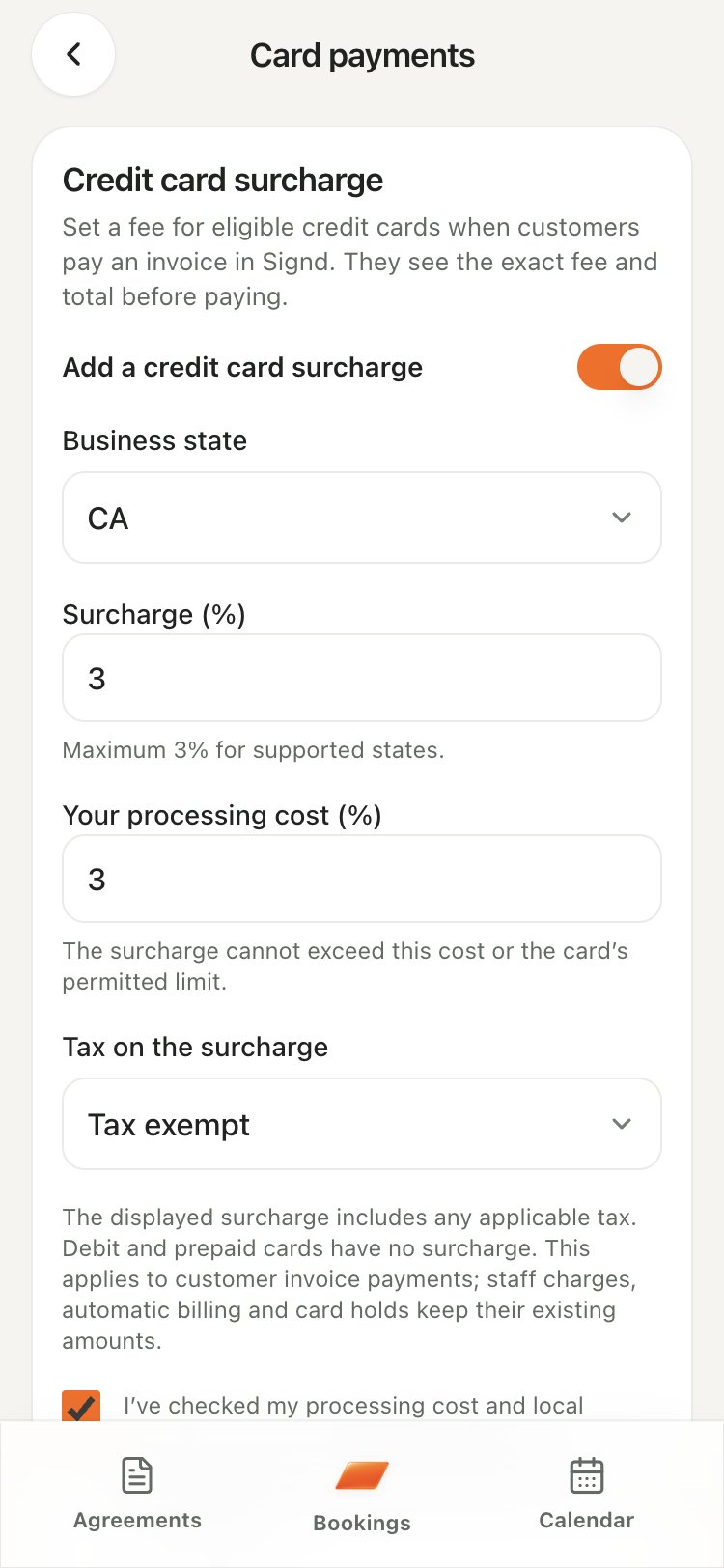
- As the owner, open Settings → Card payments or Settings → Getting paid, then Credit card surcharge. You can also search for stripe in Find a setting. Finish connecting Stripe first.
- Turn on Add a credit card surcharge.
- Choose your Business state.
- Enter your Surcharge (%) and Your processing cost (%) from your processing statement. The fee cannot exceed that cost or the card’s permitted limit.
- The setting is capped at 3% in supported states and 2% for Signd’s Colorado option. Connecticut, Massachusetts and Maine are unsupported. New York needs an advertised pricing flow that is not available here yet. A 3% setting is not permission to charge 3% on every payment.
Choose tax and save
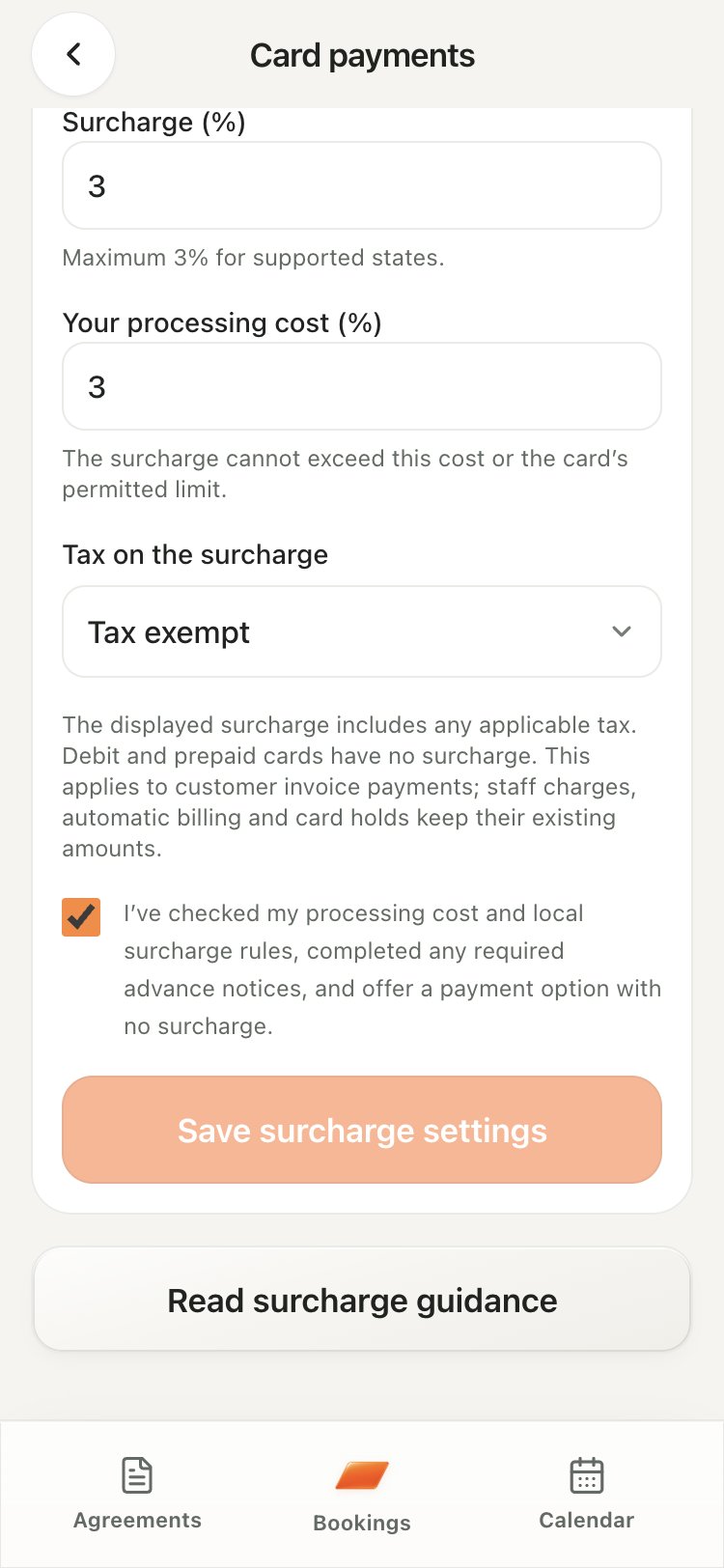
- Choose Tax on the surcharge. Use invoice tax treatment includes tax within the fee using the invoice’s tax proportion. Tax exempt applies no tax to the fee. Choose the treatment that applies to your business.
- Confirm you have checked local rules, completed required advance notices and offer a payment option without a surcharge.
- Select Save surcharge settings. Wait for the confirmation that your surcharge was saved.
The screenshots use example settings. Enter your own rate and actual processing cost. Tax exempt is shown only as an example; choose the tax treatment that applies to your business.
What your customer sees
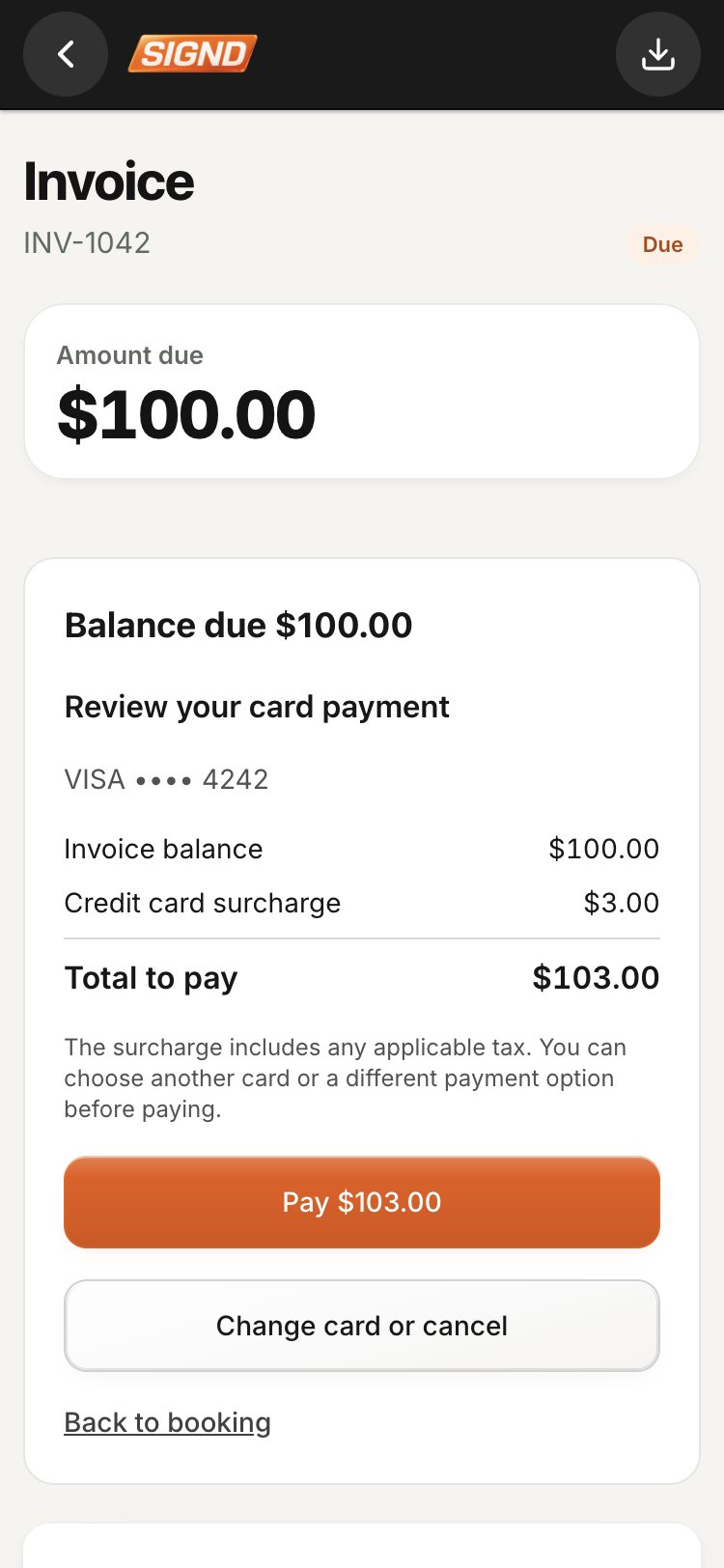
- The customer chooses a card and reviews the invoice balance, credit-card surcharge and total. This example shows a $100 invoice, a $3 surcharge and $103 to pay.
- They select Pay to accept that exact total. Reviewing a card does not charge it. If their bank asks them to confirm, Signd opens that step and checks the same payment afterwards.
- They can use Change card or cancel, or choose another available payment method, before paying.
- If a payment is still being checked, use Check this payment. Wait for its result before paying another way. Expired or changed reviews need a fresh total.
Receipts, refunds and accounts
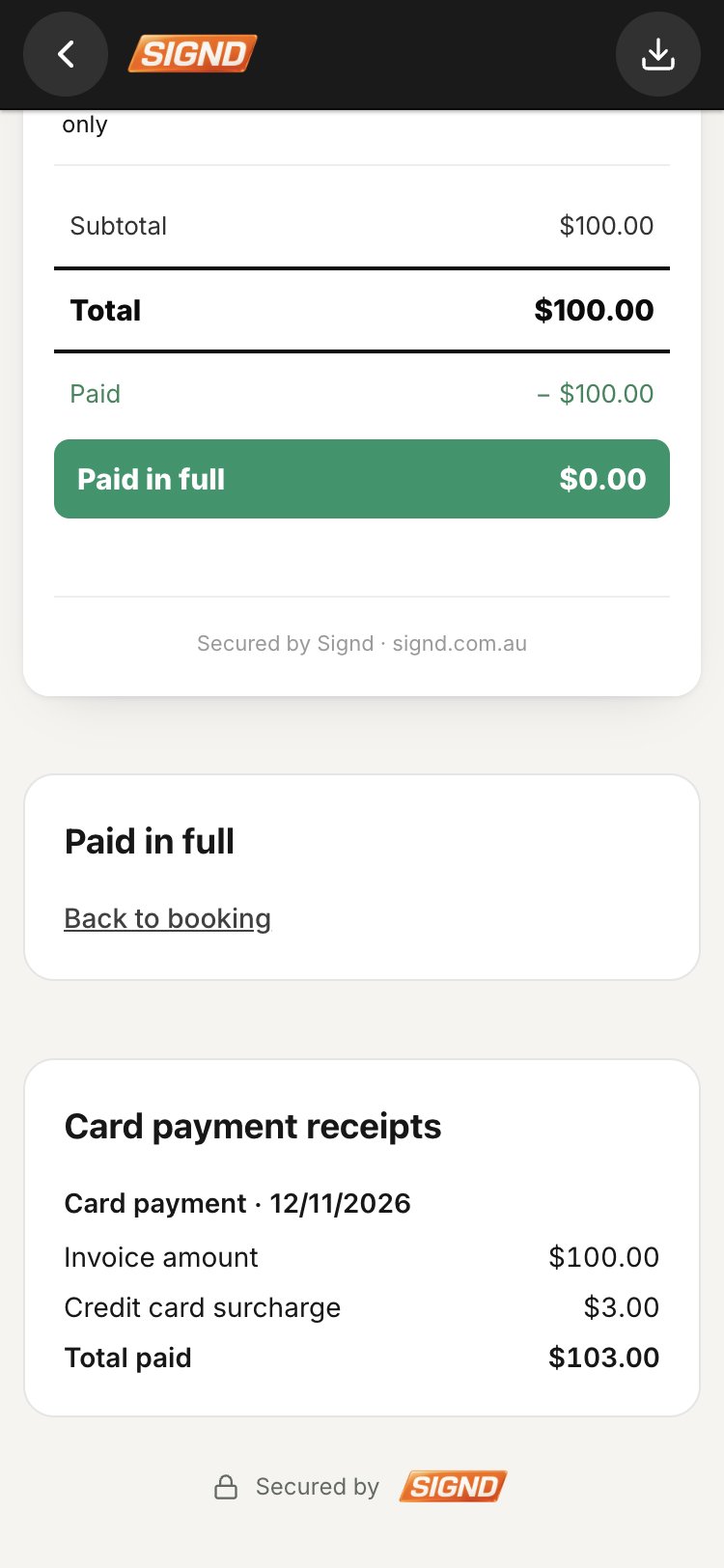
- Only the invoice amount reduces the balance due. In this example, the $100 invoice is Paid in full.
- The receipt shows Invoice amount, Credit card surcharge and Total paid separately: $100 plus the $3 fee, for $103 paid in this example.
- The original invoice and signed agreement do not gain a fee line.
- To refund a native surcharge payment in Signd, choose the invoice amount to refund. Signd shows the corresponding surcharge refund and total returned. Partial refunds add up to the original fee on a full refund.
- Xero keeps the invoice payment and surcharge separate using the saved tax treatment. Missing or incompatible account or tax mappings need review before sync can complete.
Blocking cards is a separate choice
- Debit cards can pay without a surcharge unless you block them. Use Stripe Radar on the same settings page to open your existing account’s rules. The Radar guide covers blocking debit and prepaid cards and checking cards saved for later.
- Radar does not add fees. Custom rules require a Stripe plan that includes them, and allow rules can override a blocking rule.
Location and card rules
- Rules depend on location, card network, processing cost, notices and disclosure. See Visa’s requirements and Mastercard’s requirements.
- From 1 October 2026, Australian businesses can no longer add surcharges for Visa, Mastercard, American Express or eftpos credit, debit or prepaid payments. See the ACCC’s current guidance.
- The older online-booking fee setting does not check credit-card eligibility. Do not use it, a manual invoice line or a renamed service fee to bypass these checks.