Reports
See the money you've collected, what's owed to you, your best customers, how often each asset is booked and every invoice.
Open Reports
- Go to Settings and tap Reports, or type reports in Find a setting.
- Tap the dates button in the bar at the bottom and pick This month, Last month, Last 90 days, This financial year or Custom (up to 400 days). Dates follow your business timezone.
- Switch between Overview (money collected and what's owed), Customers (who spent the most) and Assets (how often each asset is booked) in the same bar. Every tab shows the dates you picked.
- Every invoice has its own screen: tap See invoices, or go to Settings → Invoices. It has All, Paid and Overdue tabs and the same dates.
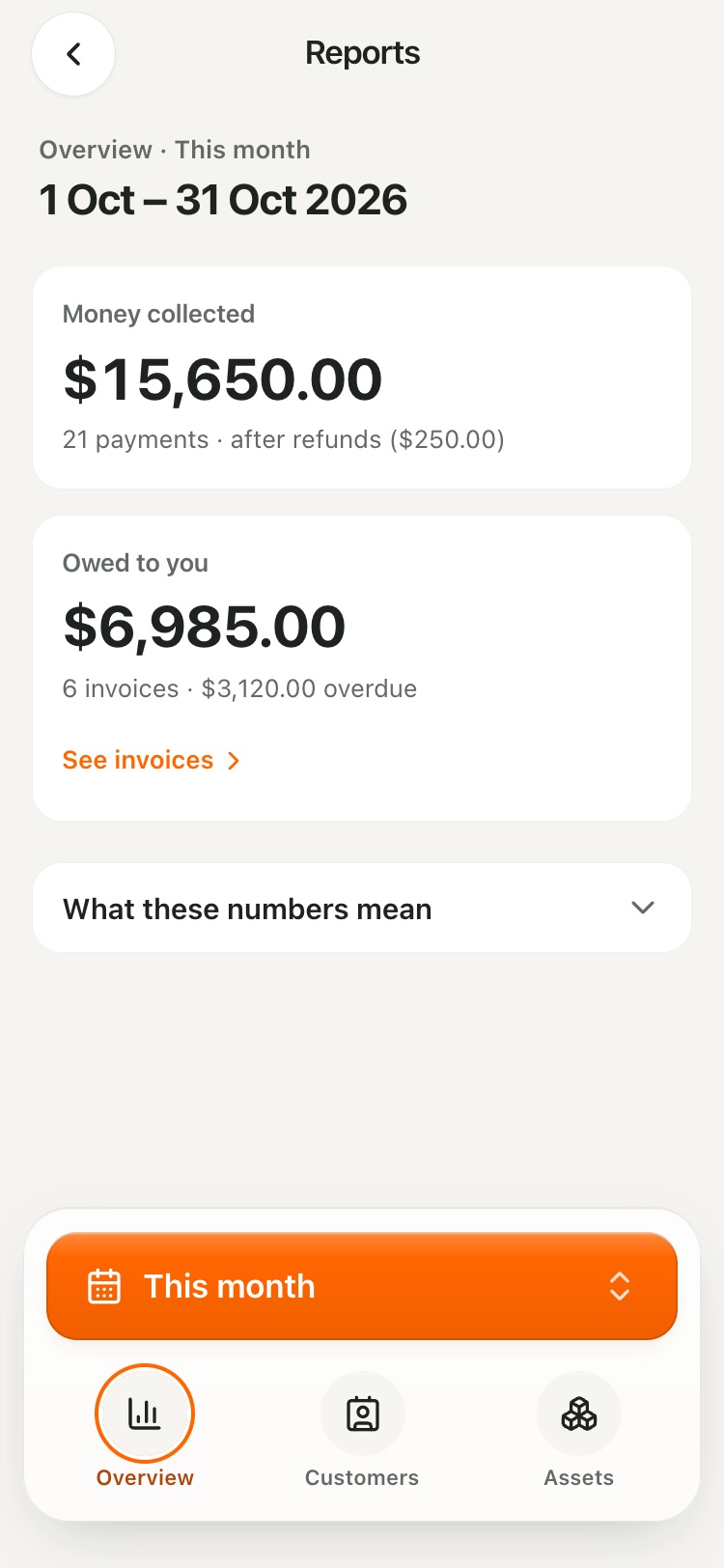
Money collected
- Payments recorded in Signd in those dates, after refunds, including bonds you gave back. Card payments and payments you record yourself both count.
- It isn't your bank balance or your Stripe payouts.
Expenses
- Expenses are part of Signd Pro+ (coming soon). With it, Overview also shows the expenses you recorded in those dates. Tap See expenses to add or check them.
- On Signd Pro, Overview shows money collected and what's owed.
Owed to you
- Owed to you is what customers owe today on sent or confirmed invoices, due or overdue, whatever dates you picked.
- Tap See invoices to open Invoices.
Customers
- Customers ranked by what they spent in those dates, highest first: invoices dated then, less credit notes, for hires that have started.
- Bonds, card holds, refunds and upcoming hires aren't counted.
- Type in Search customers to find someone by name or business.
Assets
- For each asset: the days it's booked for any part of the day, out of every day in those dates. Upcoming bookings in those dates count.
- It counts bookings, not engine hours, and doesn't skip weekends.
- With Signd Pro+ you also see what each machine earned: its share of each invoice, by invoice date.
Invoices
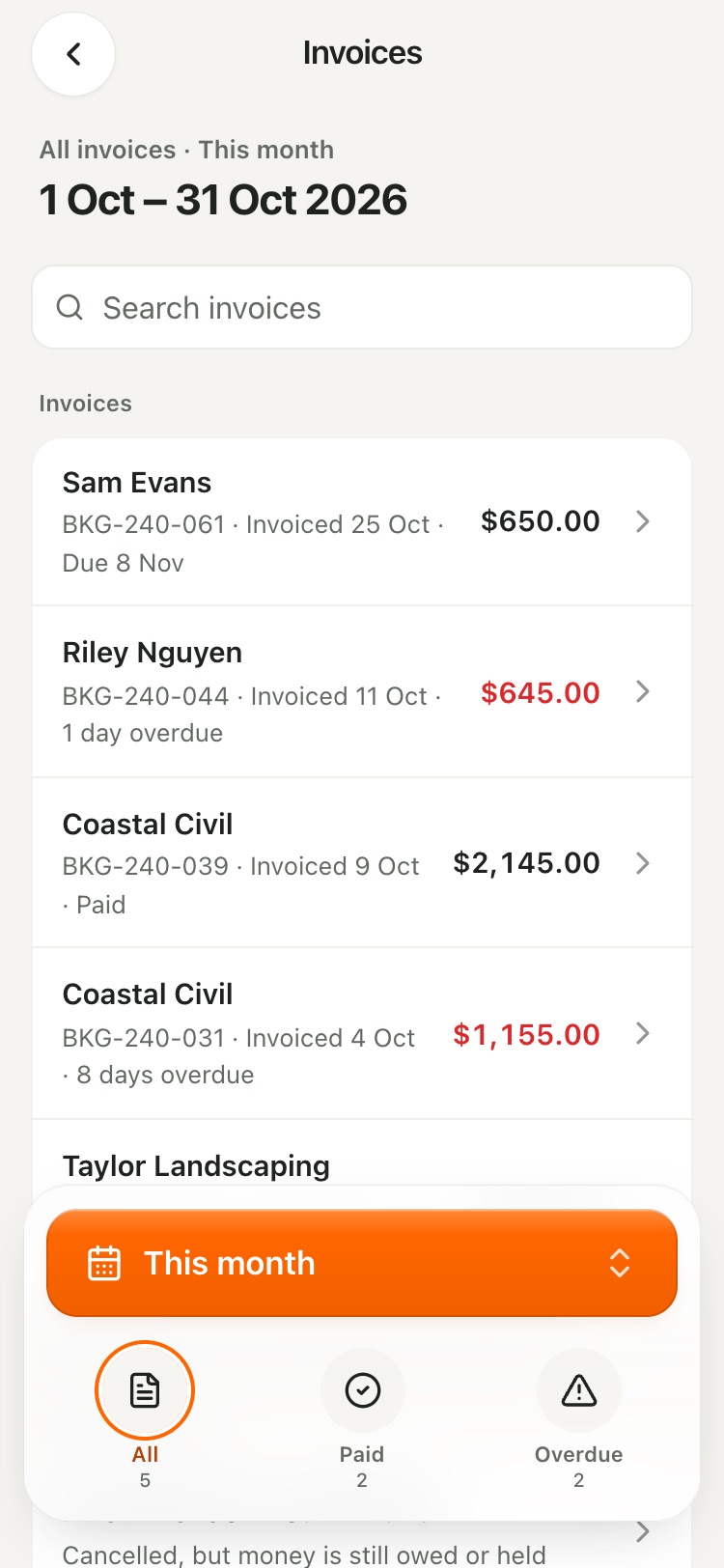
- Type in Search invoices to find one by customer, business or booking number.
- Every booking invoiced in the dates you picked, newest first, with what's owed on it today. Tap one to open its booking.
- Switch between All, Paid and Overdue in the bar at the bottom. Each tab shows how many invoices it has.
- Overdue also lists earlier invoices that are still overdue, so nothing owed is hidden by the dates.
- Overdue means past its due date. Due today isn't overdue.
Signd records the day each invoice is issued. Older invoices are dated by their hire start, or by their Xero date if they were sent to Xero. Later changes, Xero credits and deleted invoices count on the day they happened, so earlier months don't change.
Needs a check
- Under All in Invoices: bookings whose figures aren't settled yet, for example cancelled with money still owed or held, Xero not matching yet, or a refund not confirmed. Their amounts are included as recorded. Tap one to sort it out.
Who can see Reports
- The account owner and their team on Signd Pro, except members with the operator role.
Something not right?
Why doesn't money collected match my bank account?
Money collected is what customers paid in Signd. Your bank also has Stripe fees and payout timing.
Why isn't a customer's upcoming booking in their total?
Customers counts hires that have started, so a booking in the future joins their total once it begins.
Is this my BAS figure?
No. Reports is a quick view of your Signd records, not tax advice. Use your accounting software or accountant for BAS.