Connect Xero
Send invoices and payments to Xero automatically. No double entry.
Connect your Xero organisation
- Go to Settings → Xero, or type xero in Find a setting.
- Tap Connect to Xero.
- Sign in to Xero and pick your organisation.
- Once it's linked, it shows Connected to Xero. Choose your accounts on the same page.
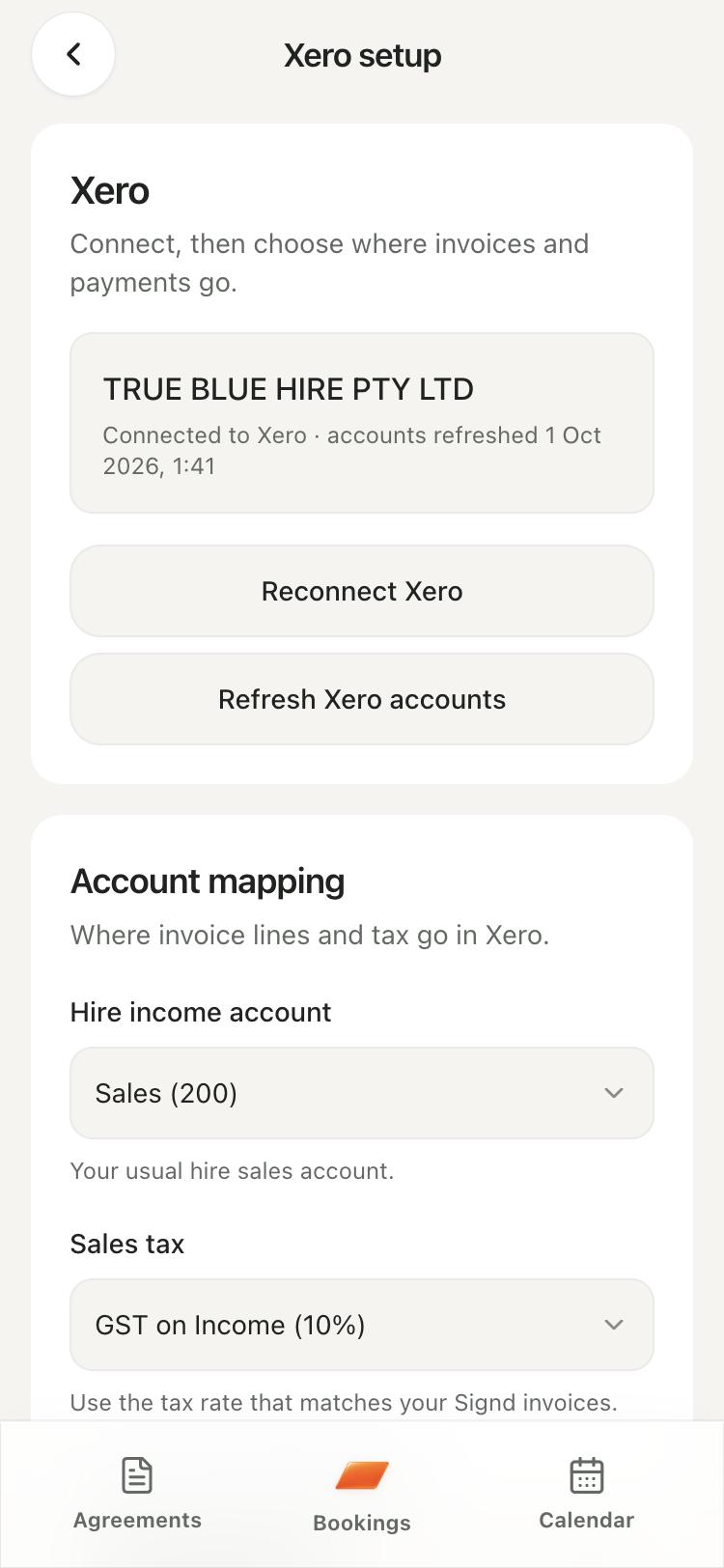
Choose your accounts
- Pick your Hire income account and Sales tax.
- Pick where card payments and bank or cash payments are recorded. Card payments need their own Stripe clearing account, not your bank account.
- Pick Stripe fees (optional) so Signd records the fee Stripe keeps on each card payment. See Stripe payments in Xero.
- Keep Sync invoices automatically and Sync recorded payments automatically on.
- Scroll down and tap Save Xero setup.
- Added or changed an account in Xero? Tap Refresh Xero accounts. Payment accounts also need the settings below.
Stripe clearing or another payment account is missing
Refresh Xero accounts to load active bank accounts and other active accounts with payments enabled. You can select an existing Stripe bank feed even when its account code is blank.
- Check the organisation shown in Signd matches the organisation where you added the account.
- In Xero, open Accounting → Bank accounts and check which Stripe account is receiving your card transactions. In the Chart of accounts, check that this account is active.
- For a Current Asset clearing account, tick Enable payments to this account and save. Being a Current Asset alone does not make it available for payments.
- In Signd, go to Settings → Xero, tap Refresh Xero accounts, then choose the account and tap Save Xero setup.
- If the account is still missing, open Account missing? and search for the account by name. Share what it says in Live chat so Tom can investigate.
Keep the bank details on your existing Stripe feed as Xero set them up.
How syncing works
- An invoice goes to Xero when you first email it.
- Changes after that update Xero too.
- Payments you record, and card payments, sync on their own. Turn payment sync off if you'd rather record payments in Xero yourself.
- Cancelling a booking credits the invoice in Xero.
- Settings → Xero invoices shows where every booking stands. Send older bookings, or resend any that need attention, from there.
Disconnect Xero
Only the business owner can disconnect the accounting connection.
- Open Settings → Xero and tap Disconnect Xero.
- Check the organisation, then tap Disconnect to confirm. Tap Keep connected to leave it connected.
- Once disconnected, syncing stops. Existing invoices, payments, customer links and account mapping stay on file. You can reconnect the same organisation later.
- If Xero can't confirm disconnection, Signd keeps the saved connection and shows an error. Try again, or ask for help in Live chat.
If the same Xero organisation is connected to another Signd account, disconnection pauses to protect that account's connection. Contact support through Live chat before disconnecting.
Something not right?
How do I sign up with Xero?
On the Signd website, choose Sign up with Xero. Xero fills in your email. Verify that email with the Signd code, then finish the usual account setup. Your new Signd account starts free; this doesn't start a Pro trial or subscription.
How do I use Sign in with Xero for my existing account?
Choose Sign in with Xero on the Signd website, using the Xero identity with the email address on your Signd account. On first use, enter the Signd email code to link that identity. Once linked, future visits can use Sign in with Xero. Your usual Signd two-step sign-in still applies, and email sign-in stays available.
Does signing in with Xero connect my accounting?
Signing in opens your Signd account. To sync invoices, payments and customers, the business owner separately connects their organisation in Settings → Xero and chooses the account mapping. Signing in with Xero leaves existing accounting connections as they are.
Does it work with QuickBooks or MYOB?
QuickBooks is coming soon. Open Settings → Xero, then QuickBooks & MYOB, for the other accounting options.
It says Needs attention on a booking
Open the booking and tap Retry next to the Xero status.
I recorded a payment straight in Xero
That's fine. Signd leaves it in Xero and keeps sending invoice changes. Record it in Signd too, for the same amount: Signd matches the two instead of sending it twice. Until then, Signd sends no other payment for that booking, because it can't tell whether it's the same money. The booking shows Needs attention and says what to do.
A payment Signd sent was deleted in Xero
Signd never sends it again by itself. If it's entered again in Xero for the same amount, Signd matches the two. Otherwise the booking shows Needs attention: tap Retry on that booking to have Signd send it again, or delete the payment in Signd to remove it for good. Send all on Xero invoices skips these bookings.
Can I bring my Xero customers in?
Yes. Go to Settings → Customers and tap Import customers from Xero.
My card payments won't reconcile
Stripe pays out less its fees, often several payments at once, so a card payment never matches a bank deposit on its own. See Stripe payments in Xero.