Add and manage customers
Keep every customer's details, licence, card, bookings and agreements in one place.
Your customer list
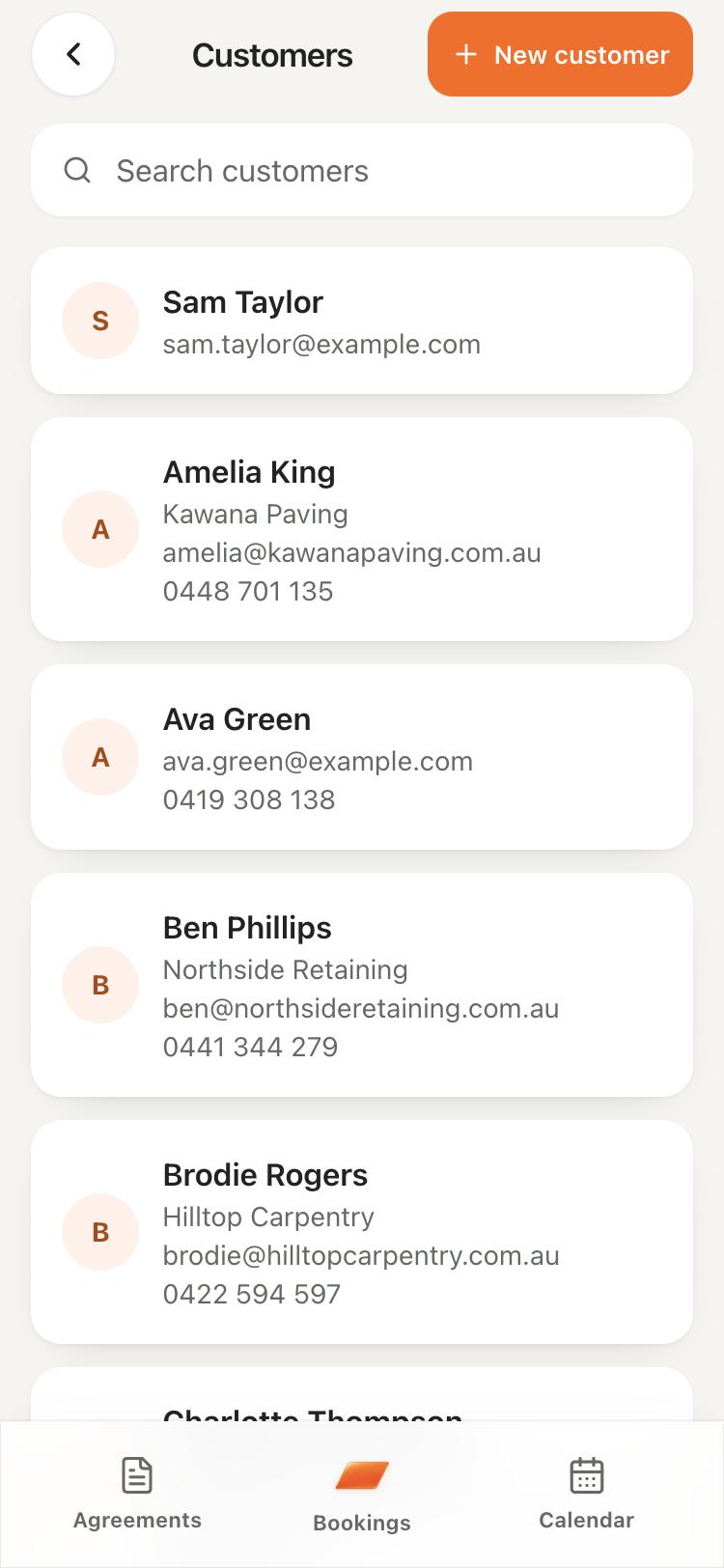
- Go to Settings → Customers, or type customers in Find a setting.
- Search by name, business, email or phone.
- Tap New customer to add one.
- Use Xero? Scroll to the bottom and tap Import customers from Xero.
Add a customer
- Enter their first name and email. Everything else is optional.
- Add their business, mobile and address if you have them.
- Tap Save customer.
You can also add customers while you make an agreement or booking.
A customer's page
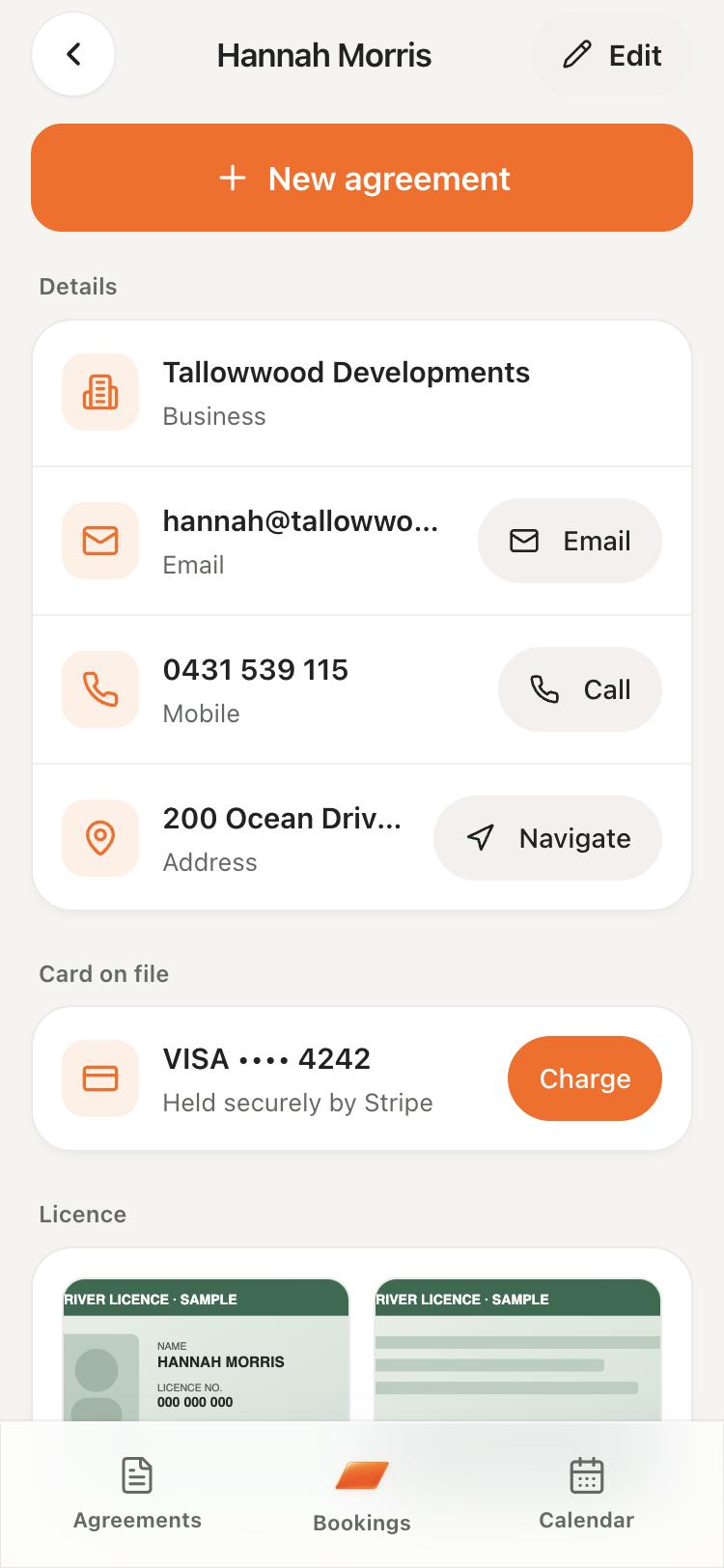
- Tap a customer to see their details, licence, card on file, bookings and agreements.
- Under Bookings, tap a booking to open it. Close it or tap Back to return to the same customer's page. Tap Show more bookings for older ones.
- Tap Email, Call or Navigate to get in touch fast.
- Tap New agreement to start one with them already filled in.
- Tap Edit to change their details.
- Saved a card? Tap Charge to charge it.
- To take a saved card off the customer, tap Remove card, then Remove card again to confirm. It can't be charged from Signd again; signed agreements and past charges stay on file. Tap Keep card if you change your mind.
- Type team-only Internal notes, or tap the flag next to Edit to mark them Do not hire. See Flag a customer and keep team notes.
Something not right?
I added a customer twice
If the email matches, Signd uses the existing customer instead of making a copy.
Can I delete a customer?
Not yet. Edit their details instead, or email support.