Equipment hire agreement template: what to fill in for each hire
A worked equipment hire example, the details to check before sending, and how to use your existing terms in an agreement customers sign on their phone.
Tom - Founder of Signd
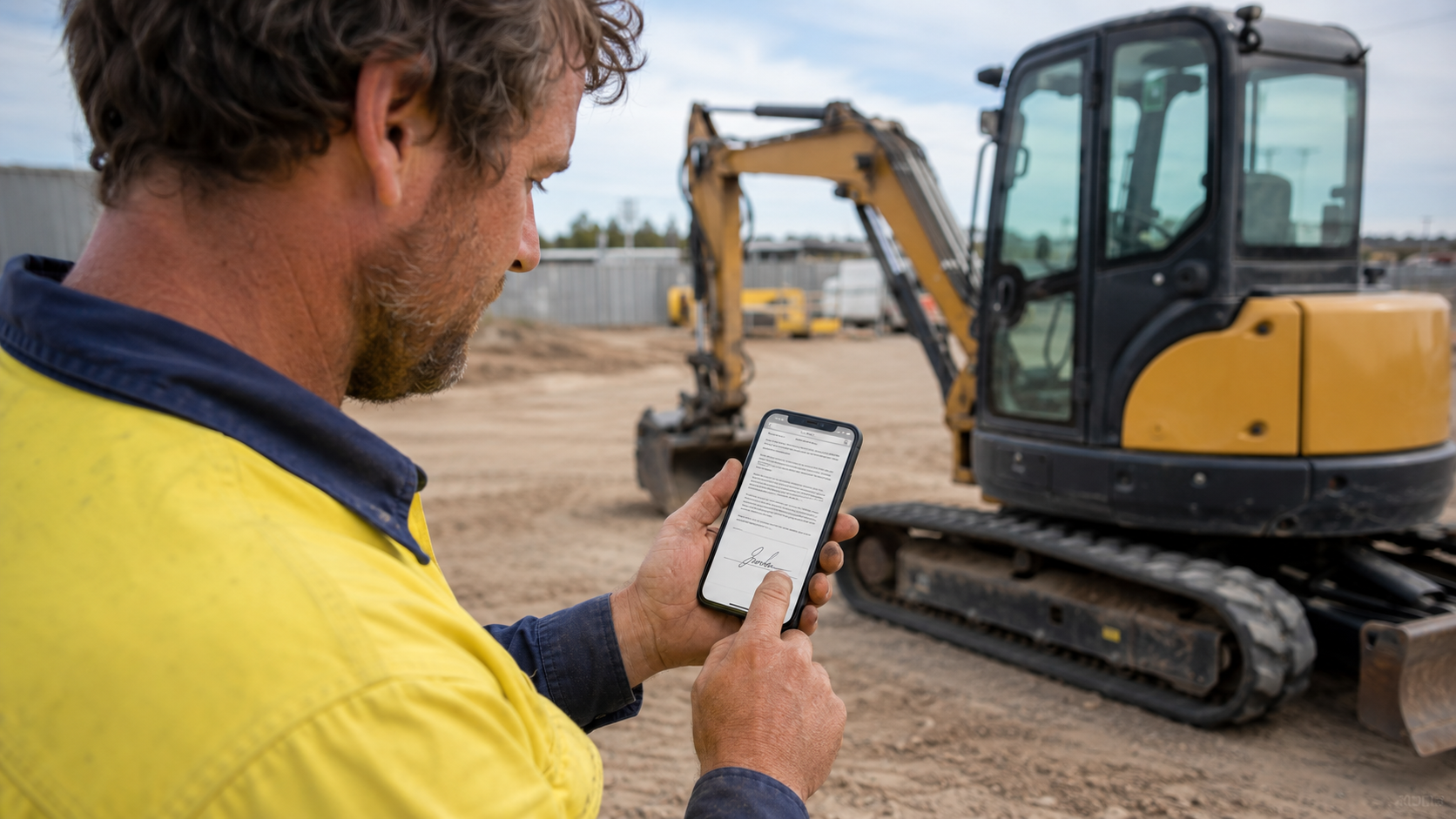
An equipment hire agreement template should keep your standard terms ready and record what is different about each hire. Before you send it, check the customer, exact gear, dates, charges and return arrangements.
Here is a worked example, followed by the steps for turning your existing Word or PDF terms into an agreement a customer can sign on their phone.
1. Keep reusable terms separate from the job details
Your usual payment, fuel, cleaning, damage and return terms may carry across several hires. The customer, equipment, dates and agreed price need checking every time.
Keep the reusable wording together. When you start the next job, fill in its details separately. This makes it easier to spot an old return date or a previous customer's name before sending.
For the topics to review in your terms, use the hire agreement template guide. Have the terms checked for your equipment, business and location before using them. Signd's starting template is a starting point, not legal advice.
2. Fill in one clear hire schedule
This is a fictional example of the job details, not suggested prices or a complete contract.
| Detail | Example |
|---|---|
| Customer | Jamie Example |
| Equipment | Plate compactor PC-07 |
| Included items | Rubber paving pad and transport trolley |
| Pickup | 24 November 2026 at 8 am |
| Expected return | 25 November 2026 at 8 am |
| Agreed hire charge | A$90 for the stated period |
| Return location | Example Equipment Yard |
| Job reference | Example driveway job |
Replace every sample detail with the real job. Add the customer's actual contact details and the site or delivery address where relevant. Make clear what the quoted amount includes, including your applicable tax treatment and any agreed delivery or collection charges.
Name the attachments and accessories individually. “Compactor” alone does not tell either person whether a paving pad and trolley went out with it.
For dry hire, record the arrangement for operating the equipment in your terms. For wet hire, make the supplied operator and agreed work clear. Choose the terms that fit the job.
3. Bring your terms into Signd
You have three ways to get started:
- Use Signd's template: open Settings → Terms and choose Signd template, then review and edit the starting wording.
- Use your current terms on Free: write or paste the text into the terms editor. Copy the reusable wording rather than a previous customer's completed agreement.
- Import from a PDF on Pro: use Import PDF to bring the text into the editor, then review it before saving.
PDF import extracts text; check the wording, headings and any missing passages against your original. Keep an original copy while you review it.
Free includes one reusable terms set. Signd Pro adds more sets, which can be useful if your dry hire and wet hire work use different terms.
The editable template lives inside Signd. Customers receive a PDF after signing. If you want a printable list of what to check first, use the free hire agreement checklist.
4. Build and preview the actual agreement
In Signd, start a new agreement, choose the customer and select the assets going out. Add the hire dates, hire total and relevant job details, then check the selected terms.
Read the preview as the customer will see it. For the compactor example, check:
- The asset number is PC-07 and the included items are recorded.
- Pickup and return include a time as well as a date.
- The hire total matches the amount you agreed.
- The customer's details and selected terms belong to this job.
Correct mistakes before sending. A familiar customer's next hire can still have a different machine, delivery address or return time.
5. Send it and check that it is signed
Email the agreement or choose Share link and copy the signing link into your own message. Customers open it in their browser without installing an app or creating an account. If they are with you, use Sign now on your phone.
Check the agreement's status before handover. Sent means it has been sent; it does not mean the customer has signed. Once signed, the customer receives the PDF by email and you can download the signed copy.
For the checks beside the gear, use the equipment hire handover checklist.
What is free?
Signd Free includes unlimited hire agreements, customers and assets, plus one terms set. Creating a free account does not need a credit card.
Signd Pro adds PDF text import, multiple terms sets, licence photos, condition reports, card on file and other business tools. Card on file also requires a connected Stripe account. Licence photos record the supplied document; they do not verify identity.
Create, send and sign hire agreements for free, starting with the customer and equipment for your next job.